

Change Doesn't Always Equal Improvement
This latest update to the community site, in my opinion, is not an improvement for the end-user. The first issue is the layout. Across the top, you have the following sections.
The Adobe eLearning Community website was updated earlier this year. After several months of using it, I decided to write a review of the community website.
When Adobe told many of us about the concept of the community website at the Adobe eLearning Conference in Washington DC several years ago, I was excited. I was looking forward to seeing something very similar to what the Articulate community had in their eLearning Heroes website. At first, it was good. It was a place where people could ask and answer questions about software that sometimes is difficult to find. It was a place where I and others could write articles or post videos, and while it wasn't perfect, it was better than just having the Adobe eLearning forums.
This latest update to the community site, in my opinion, is not an improvement for the end-user. The first issue is the layout. Across the top, you have the following sections.

Blogs
Webinar
Tutorials
Certificate Program
Quick Start Assets
Discussions
Post here
Search
Notifications
and your profile icon
Adobe has further subdivided the Blogs section into the following subcategories:
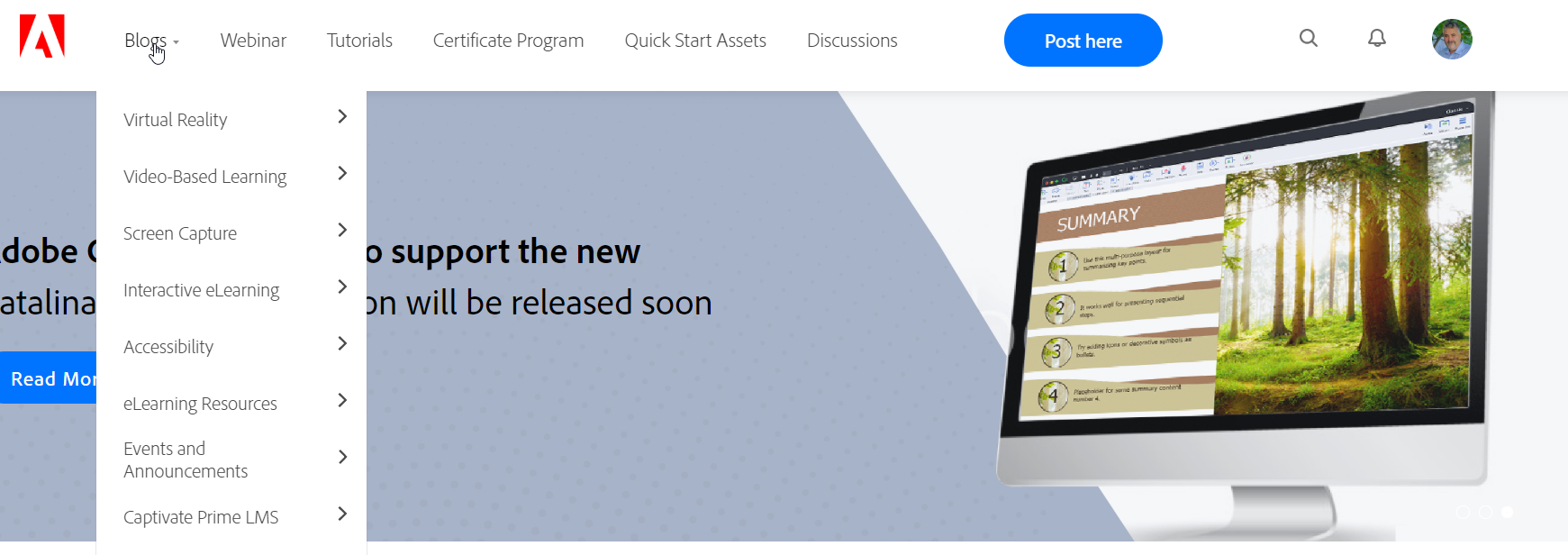
First layer of Subcategories
Virtual Reality
Video-based Learning
Screen Capture
Interactive eLearning
Accessibility
eLearning Resources
Events and Announcements
Captivate Prime
And if that were not confusing enough, there is a third layer of subcategories. I won't list them all, but just virtual reality alone has seven subcategories below it.
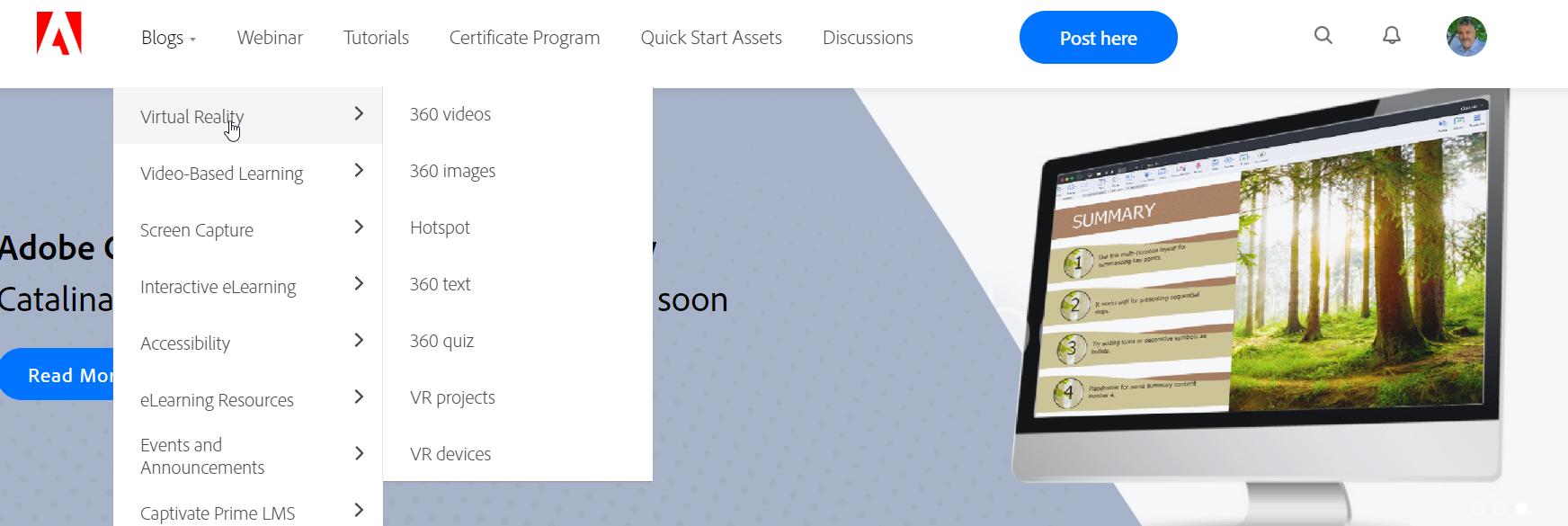
Two many nested sub categories
Having choices where to put content is crucial if you want a blog post to stand out from the hundreds of options, but there is such a thing as having too much choice. For example, if I created a blog post about a virtual reality project that included both 360-degree video and images, it potentially could apply to six of the seven subcategories in Virtual Reality. As a test, I went to find several of my recent posts, and I had trouble finding them.
I'd also like to point out that Adobe has also further divided the subcategories into the type of content. First, are video tutorials, but not like the ones I create. These are tutorials exclusively designed by the Adobe eLearning team. Some of them are quite good, but many seem to be trying to convince you that creating an eLearning course only requires 30 minutes of your time and is as easy as counting to three or four. Once you scroll past the Adobe built content, you see a list of upcoming Webinars. Wait, I thought we were in the Blog section.
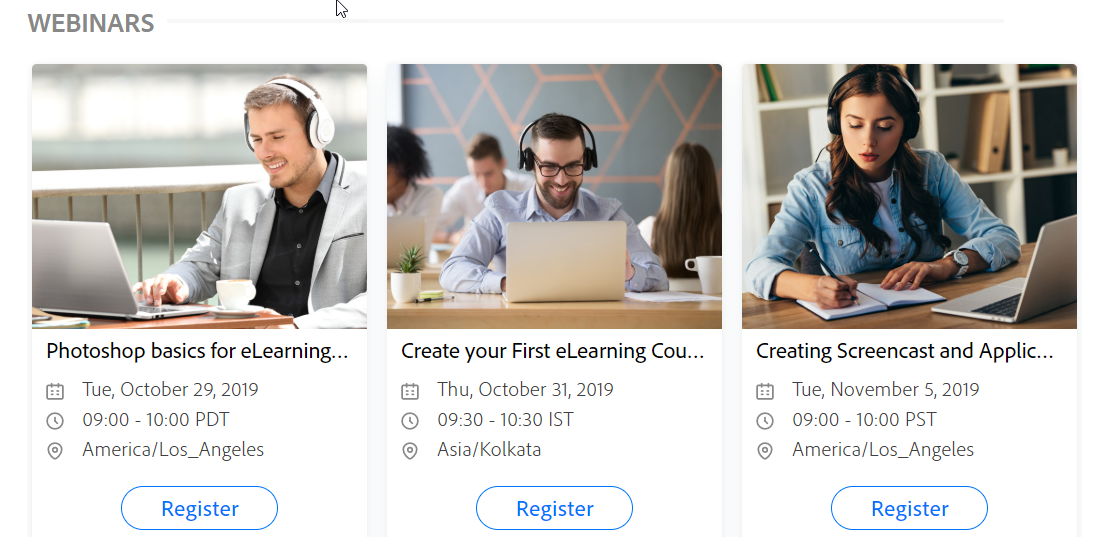
Webinars that appear in the blogs section for some reason
Then if you scroll down a little more, you will finally see the user-created content. It's easy to miss, though, as you might give up looking for such content after seeing all the marketing hype.
A small point of contention with me is the thumbnails for the user-generated content. As a blogger to this space, I used to be able to upload my thumbnails for my blogs. Using my thumbnails was great because I could add my branding directly from my YouTube videos. It made it easy to find my content later, but it also made it easy for my followers to see my material as well.
So now that we have gone down the rabbit hole that is blogs, let's look at the Webinar section. I feel I've already seen it because it was buried inside the blog section as well. The webinar section is okay. However, there are no opportunities to post user webinars. These webinars are the ones sponsored by Adobe. You might see a webinar hosted by me someday in the future, but only if I was invited by Adobe to run such an event. Below the upcoming webinar section, are the recordings of past webinars. Webinar Recordings are welcome as I often find out about a particularly useful webinar only after the event has passed.
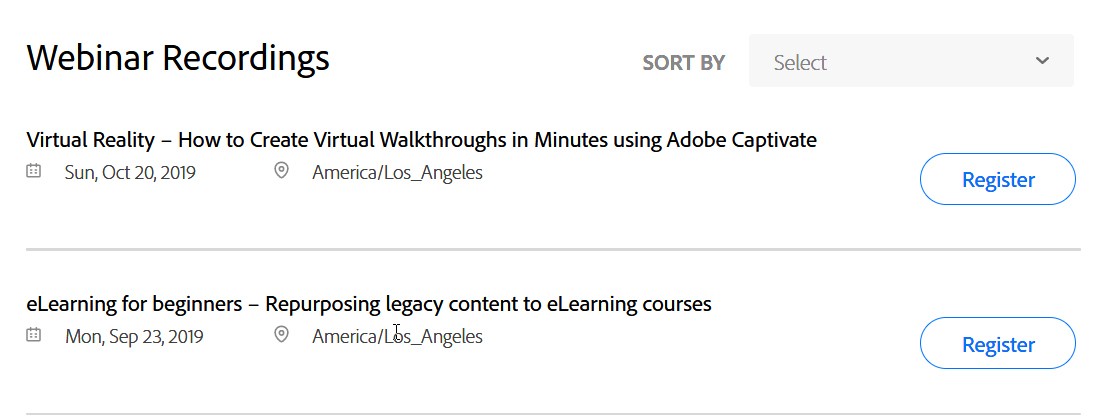
Past webinar recordings
The next section is the Tutorials section. The first of these is a series of marketing videos designed to promote the sales of Adobe Captivate. Most are one or two minutes long, and if you are considering purchasing Adobe Captivate, these are great. If you are expecting to learn the actual procedures on how to use Adobe Captivate, you will be disappointed. If you scroll further down the page, you will see some useful tutorials like the ones created by Pooja Jaisingh. This section can be expanded to see all the videos available in this category.

Tutorials that are actually marketing materials
Next is the section for the Certificate Program, which covers everything you need to help you decide if you would like to attend an upcoming Adobe Captivate Specialist Certification session. At the time I'm writing this, there are no future sessions. However, the page is still promoting the Las Vegas, Seattle, New York and Chicago sessions. It's been at least two weeks since any of these sessions occurred. If you click on register, Adobe thanks you for your interest, but there is nothing for you to do. Hopefully, they will start to plan more upcoming sessions in the future.

Past sessions of the Adobe Captivate Specialist Certification
The next tab brings you to a page about the Quick Start Assets. Clicking on the thumbnails that represent each of these Quick Start Assets will show three icons. The icons are View slides, Preview Project and Download. View slides will show you a thumbnail of all the slides included in the Quick-Start-Projects, The preview project shows you a published version of that project and the download saves a copy of the project file to your computer. All these project files are available directly from Adobe Captivate 2019 Update 2 or newer. Since these files are not compatible with any previous version of Adobe Captivate, my guess is the purpose is to create envy for users of earlier versions of Adobe Captivate. Perhaps this might convince more users to upgrade or subscribe to Captivate as a monthly service.
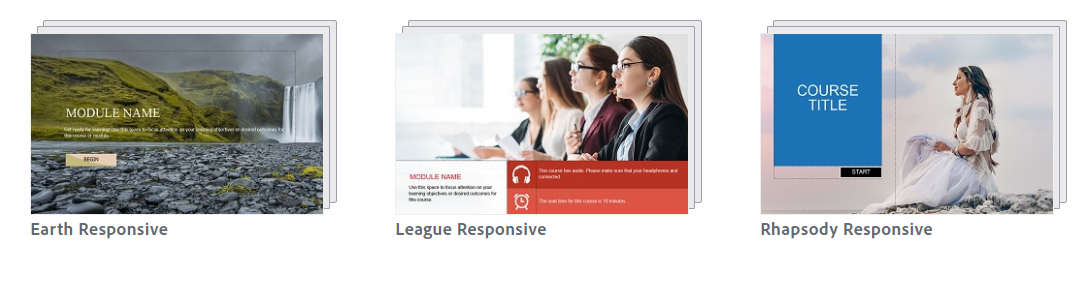
Showing Captivate users on prior versions what they’re missing
The next and final section before your ability to post and search through all the content is the Discussions section. Here is where Captivate users ask the questions in the hopes of getting answers to their challenges. Before this update, If a user had a problem they needed solving, the same question was posted to the more traditional Adobe User Forum for Adobe Captivate. Alternatively, questions asked on the forum were duplicated here also. As a person who frequently answers user questions, I could choose the platform I wished to monitor and do my best to help as many people as I could. Not so anymore. The two sites are no longer linked. Users who decide to try and help other users need to monitor both locations since Adobe no longer keep these two sites linked.
Furthermore, when compared to the Articulate eLearning Heroes site, Adobe relies on users like you and me to answer the questions about Adobe Captivate for fellow users. While regular users can answer questions on the Articulate eLearning Heroes site, they have a dedicated team of employees whose job it is just to help users with problems out. You might be thinking that Adobe doesn't have these people on staff. That would be incorrect. By my count, there are as many people from Adobe with similar roles as the folks over at Articulate.
Logitech BRIO Unboxing
I've decided to upgrade my webcam to a new Logitech BRIO. The BRIO offers up to 4K video and has a detachable USB-C cable, which gives me greater flexibility in how I connect it to my laptop.
I've decided to upgrade my webcam to a new Logitech BRIO. The BRIO offers up to 4K video and has a detachable USB-C cable, which gives me greater flexibility in how I connect it to my laptop. Please note, for the first portion of this video, I was using my Blue Yeti microphone. When I detached my old webcam and connected the BRIO, I forgot to check which microphone I was using. Turns out, I was just using the internal microphone built into the BRIO, so that might be of interest to those considering this webcam. Generally, though, I use a different microphone than what is built into the camera. The history of my channel with equipment is fascinating (well to me at least). When I started my YouTube channel, I didn't use webcams at all. I simply made screen recordings of my software and narrated them using a headset/microphone. The first improvement I made was purchasing the Blue Yeti to improve the audio of my videos. The first time I used a webcam along with my tutorials was likely just my internal webcam on my previous laptop. I don't know if this is the first time, but this is my earliest Livestream:
🎞 https://youtu.be/bEpLQleFobs You can clearly see the quality difference between this and what I use today.
The first time I used a webcam in one of my video tutorials was in this video:
🎞 https://youtu.be/RDda0gbBM3g
Again I believe this was my internal camera on my old laptop. At the time, I was using Adobe Presenter Video Express, and this workflow remained for hundreds of videos. I've since abandoned PVX as it's sometimes called since one of its major limitations is that it only records 15 fps for webcam recordings.

How To Create a Storyboard for eLearning | Monday, October 21, 12:00 EDT, 14:00 UTC
In this eLearning Livestream, I will be sharing with you some of the practises I follow when writing an eLearning storyboard.
In this eLearning Livestream, I will be sharing with you some of the practises I follow when writing an eLearning storyboard. You will learn...
how much content needs to be included,
what're the most important things for your stakeholders to review,
how to write narration so that it can actually be spoken, and
what elements need to be included.
Join me over on YouTube if you wish to participate in the Live Chat.

Show Different Character Reactions in Your Adobe Captivate Quiz
In this video tutorial, I show you how you could create a series of multi-state objects that will be triggered by the success or failure action of a quiz question. You will get a caption and image of a character who is positive when you get the question correct.
Inspired by Timothy, who wrote a question in the Adobe forums, I decided to take this on as a challenge. In this video tutorial, I show you how you could create a series of multi-state objects that will be triggered by the success or failure action of a quiz question. You will get a caption and image of a character who is positive when you get the question correct. Adversely you get a negative caption and reaction when you select the wrong answer.

Close Your Adobe Captivate Table of Contents on Each Click
In this Adobe Captivate quick tip, I show you how you can close the table of contents each time you click on one of the items and jump to that particular slide.
In this Adobe Captivate quick tip, I show you how you can close the table of contents each time you click on one of the items and jump to that particular slide.

How to Design an Adobe Captivate Project for Your Organization | Oct 14th, 12:00 EDT | 16:00 UTC
In this eLearning Livestream, I will be taking you through the process that I go through when building what is actually known as a Captivate Theme. I hesitate to call this a template because that is something else in Adobe Captivate. However, this template would be based on the branding requirements of your organization or the organization of your clients.
In this eLearning Livestream, I will be taking you through the process that I go through when building what is actually known as a Captivate Theme. I hesitate to call this a template because that is something else in Adobe Captivate. However, this template would be based on the branding requirements of your organization or the organization of your clients.
Join me over on my YouTube channel if you wish to participate in the live chat: https://youtu.be/0oymGjENLrs

Custom Advanced Answer Captions in Adobe Captivate
In this video tutorial, I show you how you can create your own advanced answer captions by using a really helpful system variable in an advanced action that's run when your learners submit their answer.
In this video tutorial, I show you how you can create your own advanced answer captions by using a really helpful system variable in an advanced action that's run when your learners submit their answer. This addresses several issues that are caused by advanced answer captions and gives you much greater control over what happens.

Create a Secret Help Slide ...Even Better Than Before!
In this tutorial, I introduce a couple of easy advanced actions that you can add to this project. These advanced actions will return your learners not only to the slide they were on but to the exact position on that slide as well.
Last week I did a tutorial that was an easy way to have your course jump to a unique slide that was hidden from the regular navigation. This would be a great way to provide your learners with some optional information like course instructions or a help page. The problem with that solution is that every time you returned your learners to the slide that you started from, the slide would start from the beginning of the slide. In this tutorial, I introduce a couple of easy advanced actions that you can add to this project. These advanced actions will return your learners not only to the slide they were on but to the exact position on that slide as well.
Patreon subscribers get to download the Adobe Captivate 2019 project files for this video
💾 https://www.patreon.com/paulwilsonlearning

Create a Secret Help Slide in Adobe Captivate
In this video tutorial, I will show you how to set up a slide that isn't part of the regular navigation of your course. This slide will instead be accessed from any other slide in your project using a small icon in the corner. This is useful if you want an optional page that includes course instructions, or perhaps a special help page that learners can only access if they need it.
In this video tutorial, I will show you how to set up a slide that isn't part of the regular navigation of your course. This slide will instead be accessed from any other slide in your project using a small icon in the corner. This is useful if you want an optional page that includes course instructions, or perhaps a special help page that learners can only access if they need it.

What to Expect at the Adobe Learning Summit 2019 | Sept 2, 12:00 PM EDT | 16:00 UTC
Many of you may be attending the Adobe Learning Summit in Las Vegas for the first time this fall. You may also be undecided if you want to go. In this eLearning Livestream, I'm going to talk about my experience as a presenter but more importantly, I will be discussing my experience as an attendee. I can give you some hints and tips for making it a truly rewarding and productive experience. Also, I will answer any questions in the live chat.
Sorry for the short notice. Originally I wasn't going to livestream on Monday because of how much work I needed to get done before the Adobe Captivate Specialist session on the 11th, my vacation on the 18th and the Adobe Captivate Specialist session on October 2nd and the Adobe Learning Summit on the 3rd, but I figured this would be a fun topic to cover about one month before the actual summit.
Many of you may be attending the Adobe Learning Summit in Las Vegas for the first time this fall. You may also be undecided if you want to go. In this eLearning Livestream, I'm going to talk about my experience as a presenter but more importantly, I will be discussing my experience as an attendee. I can give you some hints and tips for making it a truly rewarding and productive experience. Also, I will answer any questions in the live chat.
Join the livestream here if you wish to use the live chat: https://youtu.be/hRwbvQl7Zi0