

Publishing Adobe Captivate Video Demo for HD Resolution
In this video tutorial, I will show you my process for publishing Adobe Captivate Video Demo for high definition resolution.
In this video tutorial, I will show you my process for publishing Adobe Captivate Video Demo for high definition resolution.

One Button Click to Reveal in Adobe Captivate
How to use the same button to reveal the next state of a multi-state object. Once all the states in the multi-state object have been visited, the very same button will act as a Go To Next Slide button.
In this video tutorial, I attempt to answer a question from the Adobe eLearning Community, where Pierre asked how to use the same button to reveal the next state of a multi-state object. Once all the states in the multi-state object have been visited, the very same button will act as a Go To Next Slide button. Patreon members can download the project file for free. https://www.patreon.com/paulwilsonlearning

Adobe Captivate Interactive Video with Branching
In this video tutorial, I show you a cool way to combine two really awesome features, interactive video, and advanced answer option (branching). The advanced answer option allows you to set a different action for each answer in a single answer multiple-choice knowledge check.
In this video tutorial, I show you a cool way to combine two really awesome features, interactive video, and advanced answer option (branching). The advanced answer option allows you to set a different action for each answer in a single answer multiple-choice knowledge check.
$5 Patreon members can download the project file for free: https://www.patreon.com/paulwilsonlearning

Adobe Captivate Custom Quiz Questions Made with Shared Actions
In this video tutorial, I will show you how to build custom quiz questions made with shared actions so you can easily replicate these multiple-choice questions and revise them with little time and effort.
In this video tutorial, I will show you how to build custom quiz questions made with shared actions so you can easily replicate these multiple-choice questions and revise them with little time and effort. Patreon members get to download the project file for free. Become a Patreon member.

Secret Feature of Adobe Captivate Multi State Objects
In this video tutorial, I show you some additional methods to use multi-state objects to further enhance things like your custom interactions.
In this video tutorial, I show you some additional methods to use multi-state objects to further enhance things like your custom interactions. Patreon members can download the project file for this video from my Patreon channel.
Please support me on Patreon: https://www.patreon.com/paulwilsonlearning
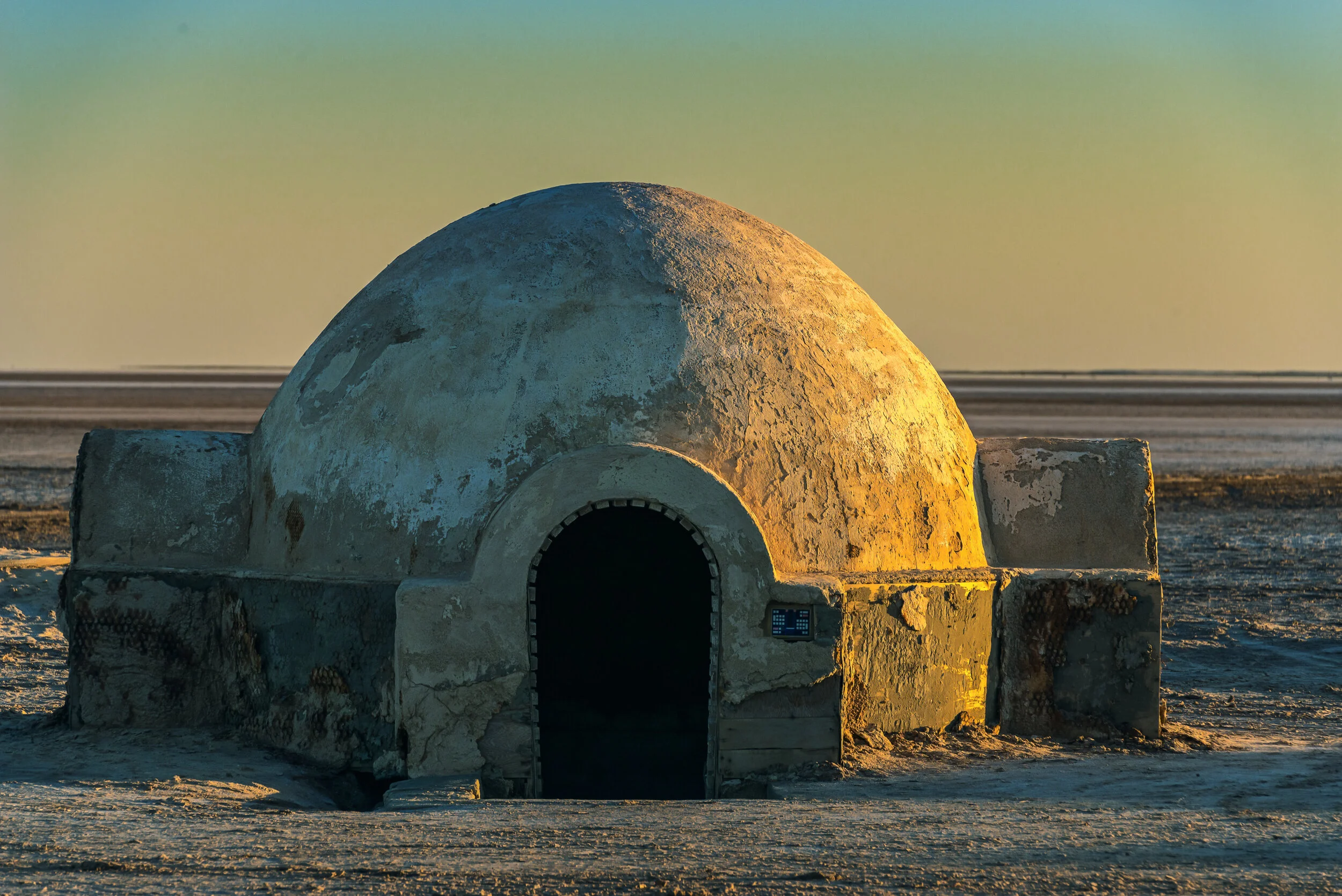
Build Your Own Droid Depot App with Adobe Captivate
In this video tutorial, I show you how I improved the Droid Depot app by using Adobe Captivate.
In this video tutorial, I show you how I improved the Droid Depot app by using Adobe Captivate.
My Patreon subscribers get this project file for free. https://www.patreon.com/paulwilsonlearning
Preview this project on ReviewMyeLearning here: https://www.reviewmyelearning.com/public_review/0KGyfrw85lVROHGZ

Only Let Learners Select a Set Number of Buttons in Your Captivate Project
In this Adobe Captivate tutorial, I show you how you can let learners only select a set number of buttons for a learning interaction by having the remaining buttons disappear when that threshold is met.
In this Adobe Captivate tutorial, I show you how you can let learners only select a set number of buttons for a learning interaction by having the remaining buttons disappear when that threshold is met. The question for this video came from the Adobe Captivate Users Group on Facebook
eLearning Livestream - Development Shortcuts, May 11, 10:00 EST / 14:00 UTC
I have resurrected the eLearning Livestream. Participation in the future eLearning Livestreams will be an exclusive feature for my Patreon members. I will make some of the recorded sessions available to my regular YouTube viewers, but only after the live events have concluded.
I have resurrected the eLearning Livestream. Participation in the future eLearning Livestreams will be an exclusive feature for my Patreon members. I will make some of the recorded sessions available to my regular YouTube viewers, but only after the live events have concluded. Because Patreon members will be joining live, they will have the advantage of being able to ask any eLearning related questions and have me answer them during the broadcast. While anyone can watch the previously recorded sessions, they will just be able to view and unfortunately, not participate. Become a Patreon member for as little as $1 per month, and you can cancel at any time.
Make Your Adobe Captivate Playback Start Image Not Washed Out
In this video tutorial, I will show you how you can make your Adobe Captivate start image, which is shown instead of your course auto-playing, have 100% opacity instead of all washed out.
In this video tutorial, I will show you how you can make your Adobe Captivate start image, which is shown instead of your course auto-playing, have 100% opacity instead of all washed out. This solution comes courtesy of sabre123 from the Adobe Captivate Community forums so full credit goes to him or her. Here is the entry you will want to search for: cp.autoplayImage.style.opacity=0.7

How Do I Make My Videos
One of my Patreon members asked me what do I use to make my YouTube videos. Although this has changed over time I thought I would share this with all of you.
Jayne Herdman, one of my Patreon members asked me what do I use to make my YouTube videos. Although this has changed over time I thought I would share this with all of you.
Surprisingly - Adobe Captivate
The first 200 or so videos I produced on YouTube were created with the previous version of Adobe Captivate taking care of recording video demos while I used the most up to date version to demonstrate what I was trying to teach that day. For example, in the video below I was using Adobe Captivate 7 to record Adobe Captivate 8. This was before I had any subscribers by the way and I was just experimenting with the ability to make video tutorials.
I later learned that I could open two instances of the current software and no longer needed to keep Adobe Captivate 7 on my machine.
PVX
Fast forward a few years and a few thousand subscribers later and I was in attendance at the Devlearn conference in Las Vegas. I was talking to Dr. Allen Partridge, Chief eLearning Evangelist for Adobe, and he asked the very same question. I told him how I did my videos at the time and he asked if I had heard of Adobe Presenter Video Express. I hadn't. At his suggestion, I started using this application to record my videos. The first dozen or so videos I made the same way I had always created them before so you really can't see much of a difference. PVX does give you an advantage that Adobe Captivate didn't have at the time and that was the ability to simultaneously record your webcam while recording your desktop. I continued to make my videos just of my desktop display but once I was comfortable enough I started to integrate my webcam view as well. Here is one of the earliest examples where I used PVX to make my YouTube tutorials and also included my webcam.
In this example, I was using the built-in webcam from my laptop so the quality isn't as good as what I'm capable of doing today. I starting buying external webcams and since that time I've gone through about three different models ending with my current webcam that I really recommend, the Logitech BRIO: https://amzn.to/31gFlv6
One complaint about Adobe Presenter Video Express is that most computers don't have the processing power to simultaneously record your desktop at the same time as your webcam. Because of this PVX drops the frame rate down to 15 frames per second. This is why these earlier videos with my webcam look very jittery.
Techsmith Camtasia
I had invested funds into the making of my YouTube videos for a while. Things like my Blue Yeti Microphone, various webcams but other than the Adobe software, which I had been getting from free since around version 8, I hadn't really invested in software. It occurred to me that the shortcomings of PVX were really beginning to show when you would compare my videos with the big-time YouTubers. Certainly, my Logitech webcams were capable of full HD at 30 and even 60 frames per second but the software was holding me back. I decided to jump ship from Adobe PVX and try out Techsmith Camtasia. I knew it was good but I think we can all agree that the quality of videos that I get today compared with a few years ago is tremendously improved. I should point out that while I use Camtasia to record my desktop and ultimately edit between my webcam views and my desktop. I actually use good old Microsoft Windows 10 Camera to record my webcam. I run them both at the same time and then import the video file into Camtasia when I'm finished recording. Camtasia would still drop my webcam quality so recording it in a separate app really makes a difference.
Also, I would be remiss if I didn't mention that recording your desktop and your webcam is processor intensive. Make sure you have a powerful computer if you want to attempt this. Video editing, in general, requires a lot of compute cycles so I recommend a computer with a six-core processor and a dedicated GPU like I have in my Dell XPS 15: https://amzn.to/2WEAqpw