

The Five Things To Consider When Designing a Job Aid
When you work in the learning design industry, your manager or stakeholder will eventually ask you to produce a job aid. I recall being overwhelmed with this request the first time my employer asked me to create a job aid…
When you work in learning and development, your manager or stakeholder will eventually ask you to produce a job aid. I recall being overwhelmed with this request the first time my employer asked me to create a job aid. I thought there was some secret format that job aids must be. It turns out that the term job aid simply means any tool that aids your employees in performing a particular set of tasks.
It should be available only when employees need it
I recommend that you create job aids for tasks that employees need to perform infrequently. For example, if employees do not perform these tasks daily or weekly but instead only perform them monthly or even less frequently, it isn't easy to memorize these steps. Job aids can also assist employees during the early stages of new procedures until such time that these procedures are committed to memory.

It should be available where employees use it
When you are designing a job aid, you should consider where employees will use it. For example, if a particular piece of equipment is involved in the procedure, having the job aid posted next to this equipment is ideal. Posting the job aid on the company intranet site is fine for procedures that employees would perform in front of their computer but if the procedure is completed elsewhere there is no advantage to having accessed from a computer.
It should be in a format that is appropriate
When I worked at the Toronto Pearson International Airport, all employees had ID cards on lanyards. We would often create job aids in a format that could be printed and laminated and then added next to the employee ID cards on the same lanyard. Of course, keep in mind that too many job aids around the neck can be cumbersome.
It should be simple and contain just enough information to complete the tasks
Generally, I'm not a fan of bulleted or numbered text, but formatting your content in simple points is best in the case of a job aid. Again you only want to provide just enough information for the employee to complete the task. You don't need an extensive introduction or back story about the importance of the procedure. Save that for the elearning course.
I think the best example of a well-designed job aid would be the parking signs you might find in the downtown section of any city or town. In the example below, the P with a green circle means you can park in this location, but there are also some additional conditions. For example, you can only park for 30 minutes at a time. Also, you can only park between 9:00 AM and 18:00 hours on any day except Sunday.
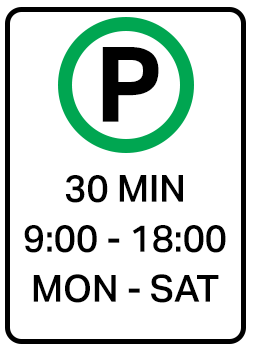
I think the parking sign illustrates the example of the simple job aid.
Training on using the job aid should not be required
You shouldn't require any separate training. It should be completely self-explanatory. If you need to train employees how to use the job aid you’ve done it wrong.
Summary
You can use whatever example you wish but I like to visualize the parking sign when I design and develop job aids. You can see that it makes use of all five things I like to consider when designing job aids.
You only need it when parking in this location
It’s located next to where it’s needed
It’s in an appropriate format
It contains only the information required and it’s simple and in point form
It requires no additional training
If you try to hit each of these points when designing your job aids you should do fine.

Create an Alternative to the Dropdown Interaction in Adobe Captivate
In this video, I show you how you can create an alternative to the dropdown interaction in your Adobe Captivate eLearning projects. This interaction is completely reusable, and you can copy and paste it into other Captivate projects as often as you wish.
In this video, I show you how you can create an alternative to the dropdown interaction in your Adobe Captivate eLearning projects. This interaction is completely reusable, and you can copy and paste it into other Captivate projects as often as you wish.

Click to Magnify an Image in Adobe Captivate
In this video, I show you how you can create a click to magnify an image in your Adobe Captivate eLearning project.
In this video, I show you how you can create a click to magnify an image in your Adobe Captivate eLearning project.

Public Live Stream - Publish Captivate for Review and LMS - July 12, 10:00 AM EDT
Join me on July 12th, 2021, at 10 AM EDT, where I will be conducting an all-access live stream for FREE. Sponsored by my friends at Review My eLearning, I will be reviewing how to publish your eLearning projects for stakeholder review and ultimately for your Learning Management System.
Join me on July 12th, 2021, at 10 AM EDT, where I will be conducting an all-access live stream for FREE. Sponsored by my friends at Review My eLearning, I will be reviewing how to publish your eLearning projects for stakeholder review and ultimately for your Learning Management System.
You can watch the live stream here but I recommend that you view it from YouTube. This way you will be able to participate in the live chat and be able to ask questions as we go.
Here is an earlier video about uploading to Review My eLearning. If you would like to try Review My eLearning for yourself please use this link to let them know I sent you: https://www.reviewmyelearning.com/?captivateteacher

Edit Slide Video Right Inside Adobe Captivate
In this video, I show you how you can essentially edit your slide video right inside Adobe Captivate. This also offers the benefit of being non-destructive in that all you end up doing is using portions of the original video for different sections of your eLearning course.
In this video, I show you how you can essentially edit your slide video right inside Adobe Captivate. This also offers the benefit of being non-destructive in that all you end up doing is using portions of the original video for different sections of your eLearning course.

My Advice About Windows 11 and Adobe Captivate
My advice about Adobe Captivate and Windows 11…
Within the last month or so I've seen some questions and comments on the forums from users attempting to use Adobe Captivate on M1 Macs. It distresses me that some users don't do the research before upgrading their hardware or software before learning the hard way that one may not always be compatible with the other.
That's why I want to try to be preemptive with my advice about Adobe Captivate and Windows 11. An early unofficial release of Windows 11 has surfaced on the internet and many tech journalists have installed it to get the scoop in the tech news space. You might be tempted to find this download and install it on your computer, but my advice is to hold off.
I get it. I love shiny new things, especially in the tech industry, but I'm a practical person as well. I never update software on my production machine until I'm confident that it's not going to impact my work. I also tend not to install recent updates until the completion of any projects I'm presently working on. I have a secondary computer in my home that I don't use for work related stuff. I might install Windows 11 on that machine first, but only once an official release of the software is available. There may be bugs that Microsoft hasn't anticipated but we also have no way of knowing if Adobe Captivate will work well with this new OS. I'm sure that Adobe is hard at work partnering with Microsoft to ensure all its software will be compatible with the new OS. Be patient and only update when you are confident this innovative technology isn't going to prevent you from getting your work completed for your employer or your clients.

Adjust the Spacing of Your Text in Adobe Captivate
In this video, I show you how you can adjust the spacing of your text in your Adobe Captivate eLearning project using something called Kerning and Leading.
In this video, I show you how you can adjust the spacing of your text in your Adobe Captivate eLearning project using something called Kerning and Leading.

Show a Next Button on Revisited Adobe Captivate Question Slides
In this video, I show you how you can have a Next button appear but only on revisited Adobe Captivate question slides.
In this video, I show you how you can have a Next button appear but only on revisited Adobe Captivate question slides.
More Complex Drag and Drop in Adobe Captivate eLearning
In this video, I answer a question that Stefan had in the Adobe Captivate eLearning Facebook Community about more complex drag and drop interactions.
In this video, I answer a question that Stefan had in the Adobe Captivate eLearning Facebook Community about more complex drag and drop interactions.

Easy to Duplicate Flip Card Interaction for Adobe Captivate
In this video, I show you how to create an easy and completely reusable flip card interaction.
In this video, I show you how to create an easy and completely reusable flip card interaction. This is similar to what you might find in some of the other web-based authoring tools.