

Adobe Captivate - Advanced Answer Feedback with Images
In this video tutorial, I answer Fundació Eduard Soler's question is there a way to insert images into an advanced answer option multiple choice question like the knowledge check I used in this video.
In this video tutorial, I answer Fundació Eduard Soler's question is there a way to insert images into an advanced answer option multiple choice question like the knowledge check I used in this video.
Download the project file for this video here:

Adobe Captivate - Modify & Create SmartShapes
In this Adobe Captivate Quicktip, I show you how you can expand the number of smartshapes available to you by modifying and thereby creating your own…
In this Adobe Captivate Quicktip, I show you how you can expand the number of smartshapes available to you by modifying and thereby creating your own. This is an update of a video I did several years ago that was originally created using Adobe Captivate 8, however this updated tutorial was created using Adobe Captivate 2017 Release.
Adobe Captivate - Keyboard Shortcuts
In this Adobe Captivate video tutorial, I show you three really helpful keyboard shortcuts that will save a bunch of time when working with the timeline...
In this Adobe Captivate video tutorial, I show you three really helpful keyboard shortcuts that will save a bunch of time when working with the timeline. Also, I’ve provided a link below that will take you to the Adobe.com site where they have provided a list of all the keyboard shortcuts for Adobe Captivate (2017 Release) and earlier.
Adobe Captivate Keyboard Shortcuts:
Adobe Captivate Fluid Boxes
In my most recent live stream, we discussed some of the known issues surrounding fluid boxes and how you can work around them...
In my most recent live stream, we discussed some of the known issues surrounding fluid boxes and how you can work around them.
Captivate 9 - Still Relevant
I'm seeing several people on the Adobe eLearning Community and my own YouTube channel who are upset that they don't qualify for the complimentary upgrade to Adobe Captivate 2017. You would qualify for the complimentary upgrade if you purchased Adobe Captivate 9 very recently...
I'm seeing several people on the Adobe eLearning Community and my own YouTube channel who are upset that they don't qualify for the complimentary upgrade to Adobe Captivate 2017. You would qualify for the complimentary upgrade if you purchased Adobe Captivate 9 very recently. I don't have the exact time frame in front of me but it's approximately 1 month or less. You can check your eligibility here:
https://helpx.adobe.com/x-productkb/policy-pricing/upgrade-policy-product-announcement.html
When I purchased Captivate 7, I did so very late in the Captivate 7 product life cycle. So late in fact that less than 30 days after I purchased version 7, Captivate 8 was launched. I reached out to the Adobe eLearning team and asked if I would be eligible to receive a complimentary license upgrade. I was pleased to learn that I was and former eLearning evangelist Pooja Jaisingh arranged to get me a new license key for version 8.
If you fall outside of the eligibility, please remember that if you are using Adobe Captivate 9 or even Adobe Captivate 8 you still have an incredible piece of software that is capable of producing some amazing eLearning. Sure there are some great new features in Captivate 2017 and I'm looking forward to using most of them. Several of my clients will not be ready for Captivate 2017 for some time. I will continue to develop content for them in Captivate 9 as I need to maintain compatibility with the software that they are still using. Try not to fret too much.
Responsive Learning
When designing for mobile I find you need to rethink learning. I always try to imagine what my learner needs from each project. For example, if an employee wanted to access my lesson while commuting on the train, what needs to be on their screen? Do I need just the basics or should I try to cram my desktop design onto their tiny screen?
When designing for mobile I find you need to rethink learning. I always try to imagine what my learner needs from each project. For example, if an employee wanted to access my lesson while commuting on the train, what needs to be on their screen? Do I need just the basics or should I try to cram my desktop design onto their tiny screen?
Another colleague and I have coined the phrase responsive learning. This is not to be confused with responsive design. No, responsive learning is a theory that I have that true mobile learning should not only know what screen size you have and accommodate for that, but to also understand the environment your learner is in and adjust the learning to be suitable for that environment. Adobe Captivate has begun this process by integrating location based information into your course. For example you could design a course in Adobe Captivate that not only adjusts the on-screen content based on the size of screen you are using but also adjust the content based on where you are. One of the eLearning evangelists at Adobe designed a sample course that would act as a tour guide within a theme park. When users would change their physical location the Captivate project would present new information based on where the learner was located within the theme park. Here is a link if you want to see this in action.
Making of an Award-winning Location-aware App!
I think we are in early days of this type of technology. In fact I would like to see location aware technology go even further than just pinpointing where you are located on the planet but to gather enough information as to determine what type of activity you are currently engaged using sensors that can determine how fast you are moving and so on. For example, it wouldn't be appropriate to have text on screen for a course while you are driving. In such circumstances perhaps the learning switches to podcast mode and presents the material in a radio show format. Perhaps this is done through a combination of GPS location, speed of travel, or maybe it just asks you what you are doing at the present and adjusts the learning based on the answers you give.
In other words, I think mobile is just getting started and we can expect that the most successful instructional designers and developers are those that take advantage of each new mobile technology as they come out. It will no longer be acceptable to just pump out a series of PowerPoint slides any more. I think we are about to see some really cool technology implemented in some really original and different ways. Stay tuned…
Adding a Note Taking Capabilility to Your eLearning Project
I'm generally not a fan of using the Learning Interactions that are built-in to Adobe Captivate, however there are a handful of them that are really great. The reason I don't care for many of them is that they are just not customizable enough for me. I always feel that I would need to make changes to the rest of my Captivate project to ensure the interactions don't look out of place. One exception is the note interaction.
In this video, I show you how you can add this Note Taking interaction to your course to allow your learners to keep track of the items they are learning from your course. The best part of this interaction is that you can save your notes or simply print them when you are finished the course.
Watch the video to see how to set it up.
Packaging Published Adobe Captivate Files Together in One
In this video I attempt to answer a question about having multiple Captivate projects with their own assessments linked together using the Multi SCO Packager from Adobe...
In this video I attempt to answer a question about having multiple Captivate projects with their own assessments linked together using the Multi SCO Packager from Adobe. The Multi SCO Packager is included with Adobe Captivate.
Adobe Captivate - Externalize Resources
From time to time you may encounter the following error when attempting to publish your Adobe Captivate project file:
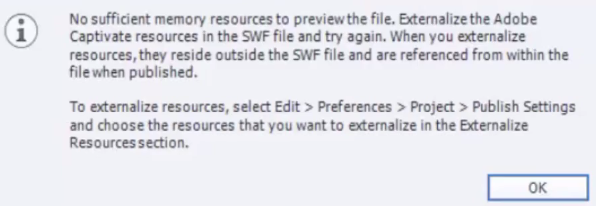
If you haven't run into this before, you may want to check out my video on how to externalize your resources when publishing. Check it out below.
Adobe Captivate 8 - Multiple Interactions in One
In this video, I show you how you can use the built-in features of Adobe Captivate to create a truly unique interaction. In this example, I combine three multiple choice questions to appear as if they are part of a single slide with pop-up characters.