
Designing with Fluid Boxes
I had some people comment that I hadn't created a tutorial on building a fluid box drag and drop interaction. I suppose they were looking for a master slide for a drag and drop interaction, similar to what you would find for quiz questions. I understand the confusion...
I had some people comment that I hadn't created a tutorial on building a fluid box drag and drop interaction. I suppose they were looking for a master slide for a drag and drop interaction, similar to what you would find for quiz questions. I understand the confusion. It's important to understand that Adobe doesn't treat drag and drop like other question slides, regardless of what we might think about that.
Anyway, I took up the call to action and created the tutorial based on what I think needs to be setup. Of course, some people might think I've done some things wrong or they would have made different choices. I encourage that you take what I've done and built upon it. That's what a community is all about. Feel free to share your comments on this process and let me know if you would do something differently.
I think the most important aspect of designing fluid box projects in Adobe Captivate is your planning stage. When I started to play around with fluid boxes after the launch of Captivate 2017, I quickly learned that the fluid box wasn't something you were just going to experiment with until you got it right. It requires planning. Whether you storyboard it or just spend time in a temporary project experimenting until you have what you want. My advice is to know what you want out of each of your slides before you start developing.
That's what this video above is all about. I knew what I wanted from this slide before I began the video and was able to quickly build it. What you're not seeing are the hours I spent preparing to create this video by planning all the aspects of each fluid box.
I'm already planning a part II for this video where I take it to the next level and build a custom feedback capability so that it isn't just your run of the mill drag and drop. Stay tuned.
Adobe Captivate 8 and 9 - Update June 2017
In this video, I show you how to update your copies of Adobe Captivate 8 or 9 with the June 2017 update. This fixes a vulnerability when reporting quiz results to a server..
In this video, I show you how to update your copies of Adobe Captivate 8 or 9 with the June 2017 update. This fixes a vulnerability when reporting quiz results to a server.
How To LIVESTREAM on YouTube
I create different kinds of videos for different situations. Most of my videos are straight up single topic tutorials. I have used the Video Demo feature in Adobe Captivate to do these but more recently I have begun using Adobe Presenter Video Express for its mixture of screen recording and webcam which if very cool. In the last six months or so I have been conducting live streams several times per month...
I create different kinds of videos for different situations. Most of my videos are straight up single topic tutorials. I have used the Video Demo feature in Adobe Captivate to do these but more recently I have begun using Adobe Presenter Video Express for its mixture of screen recording and webcam which if very cool. In the last six months or so I have been conducting live streams several times per month.
The advantage of a live stream is that you can get immediate feedback from your audience and know when it's time to move on from one topic to the next. Nothing beats viewer feedback.
Here is the process (more or less) that I use to setup and begin a live stream. YouTube makes it very easy.
How to Make eLearning More Effective
Here is an update on my previous presentation on making eLearning more effective...
Here is an update on my previous presentation on making eLearning more effective. I live streamed this last week and I hope you enjoy it.
How Adobe Typekit Works
I did some research on this today as I have a client who had some questions about it and I learned a thing or two myself...
I did some research on this today as I have a client who had some questions about it and I learned a thing or two myself. Check out the recording I made on YouTube to address these concerns
Creating Custom Question Slides in Adobe Captivate (2017 Release)
This is my first premium video tutorial on Creating Custom Question Slides in Adobe Captivate (2017 Release). Unlike other video tutorials I have created, this 1 Hour 20-minute course will guide you in the creation of a responsive design interface using fluid boxes, and write advanced actions to perform the various functions of several types of multiple choice questions...
This is my first premium video tutorial on Creating Custom Question Slides in Adobe Captivate (2017 Release). Unlike other video tutorials I have created, this 1 Hour 20-minute course will guide you in the creation of a responsive design interface using fluid boxes, and write advanced actions to perform the various functions of several types of multiple choice questions. You can purchase the full video and watch it from your Google account on YouTube. I'm presently exploring other ways you can access this if Google Wallet / Google Play isn't your thing.
LIVE STREAM - Adobe Captivate May 8, 2017
In case you missed my live stream from May the 8th. Here it is...
In case you missed my live stream from May the 8th. Here it is...
Paul Wilson - Ask Me Anything
This was just really an experiment into live streaming from a mobile device. In this case my iPad Mini. I might do this again if I'm on location somewhere, but as a serious live stream where I'm answering questions? I don't think so. You're welcome to watch it for fun though...
This was just really an experiment into live streaming from a mobile device. In this case my iPad Mini. I might do this again if I'm on location somewhere, but as a serious live stream where I'm answering questions? I don't think so. You're welcome to watch it for fun though.
Full Review - Adobe Captivate 2017
So I've been using the official release of Adobe Captivate 2017 for about two weeks now and I thought it was about time to share a full review...
So I've been using the official release of Adobe Captivate 2017 for about two weeks now and I thought it was about time to share a full review.

First of all, let me talk about Fluid Boxes. The best way I can describe Fluid Boxes is that they are object containers that resize themselves in predictable ways. They eliminate objects from overlapping with one another when shown on various different devices with different aspect ratios and resolutions. To me, this is a huge improvement over wrangling with breakpoints and trying to get content to work across all the different breakpoints. It's no secret that I was not a fan of breakpoints. To me, it just increased development time. Fluid Boxes, while they take some getting used to, will reduce your development time versus using breakpoints in Captivate 9.
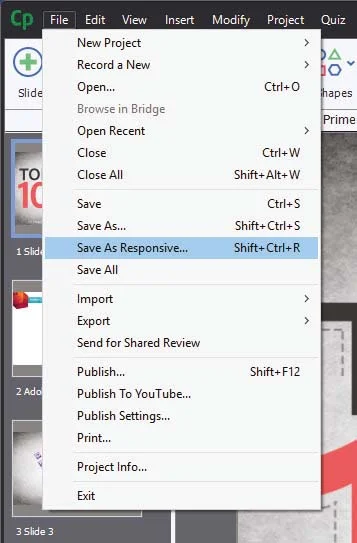
When Captivate 8 was released and introduced responsive design to eLearning, one question came up again and again. "What about my old projects?" I was hoping to see this addressed in Captivate 9 but unfortunately, it was not. In a way, I'm glad because I don't think Captivate 9 would have handled it well. With Captivate 2017 I can open a non-responsive project and save it as responsive. It literally is that easy. Of course when you open the newly created responsive project there will be some work ahead of you as you tweak most of the items and their placement on each slide, however, it will be a fraction of time compared with what it would be prior to Captivate 2017.
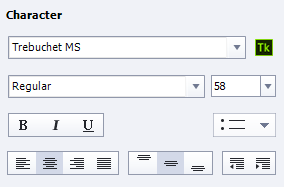
Adobe Captivate 2017 Edition also comes with Typekit integration. I like this feature but I want to give a warning. If you are a casual Adobe Captivate user, in other words, if you might not have or maintain a license of Captivate in the future you might want to think long and hard about using this feature. Typekit integration expects that you maintain your license to use the fonts that are included with any paid subscription. For example, if you subscribe to the Creative Cloud, there are certain fonts that are available to you. If you use those fonts in an eLearning project and your Creative Cloud membership lapses, so do your access to those fonts. You could be breaking your clients eLearning project if you don;t keep your subscription up to date. Of course, there are many fonts that you can use just by maintaining your free Adobe ID. You might want to consider using those if you don't know what the future has in store for you.
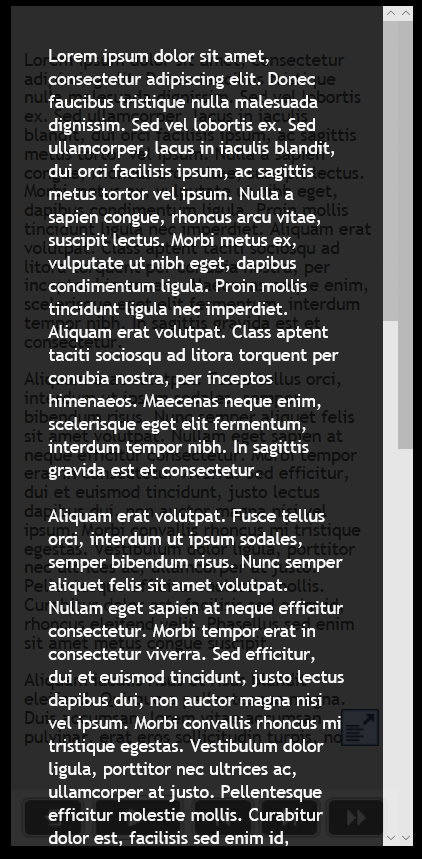
Responsive text support in Adobe Captivate 2017 is really good. There are two aspects to this. The first is that fonts will scale down as your project is displayed on smaller screen sizes. You can control what the bottom limit is. For example, on a desktop computer, your course could display a 28 point font, as you view that course on increasing smaller devices that font size will shrink until it reaches a limit that you get to set. If the amount of text cannot be further scaled down your users will see a small pop out icon that when tapped will open a semi-transparent window that will display the full text of what your user isn't able to see. tapping a second time will close the text window and return the user to the regular project. If there is too much text even for the pop out window users will be able to scroll up and down and see all the text.
If you are a learning department manager or a freelance designer like me, this upgrade gets a recommendation from me. Adobe Captivate 2017 Edition is an important milestone in the goal of responsive design eLearning. To me, there continues to be no better value in eLearning design tools. Adobe has cemented their position as the industry leader in mobile eLearning design for years to come.
When Captivate 8 was released and introduced responsive design to eLearning, one question came up again and again. "What about my old projects?" I was hoping to see this addressed in Captivate 9 but unfortunately, it was not. In a way, I'm glad because I don't think Captivate 9 would have handled it well. With Captivate 2017 I can open a non-responsive project and save it as responsive. It literally is that easy. Of course when you open the newly created responsive project there will be some work ahead of you as you tweak most of the items and their placement on each slide, however, it will be a fraction of time compared with what it would be prior to Captivate 2017.
Adobe Captivate 2017 Edition also comes with Typekit integration. I like this feature but I want to give a warning. If you are a casual Adobe Captivate user, in other words, if you might not have or maintain a license of Captivate in the future you might want to think long and hard about using this feature. Typekit integration expects that you maintain your license to use the fonts that are included with any paid subscription. For example, if you subscribe to the Creative Cloud, there are certain fonts that are available to you. If you use those fonts in an eLearning project and your Creative Cloud membership lapses, so do your access to those fonts. You could be breaking your clients eLearning project if you don;t keep your subscription up to date. Of course, there are many fonts that you can use just by maintaining your free Adobe ID. You might want to consider using those if you don't know what the future has in store for you.
Responsive text support in Adobe Captivate 2017 is really good. There are two aspects to this. The first is that fonts will scale down as your project is displayed on smaller screen sizes. You can control what the bottom limit is. For example, on a desktop computer, your course could display a 28 point font, as you view that course on increasing smaller devices that font size will shrink until it reaches a limit that you get to set. If the amount of text cannot be further scaled down your users will see a small pop out icon that when tapped will open a semi-transparent window that will display the full text of what your user isn't able to see. tapping a second time will close the text window and return the user to the regular project. If there is too much text even for the pop out window users will be able to scroll up and down and see all the text.
If you are a learning department manager or a freelance designer like me, this upgrade gets a recommendation from me. Adobe Captivate 2017 Edition is an important milestone in the goal of responsive design eLearning. To me, there continues to be no better value in eLearning design tools. Adobe has cemented their position as the industry leader in mobile eLearning design for years to come.
Adobe Captivate 2017 Edition also comes with Typekit integration. I like this feature but I want to give a warning. If you are a casual Adobe Captivate user, in other words, if you might not have or maintain a license of Captivate in the future you might want to think long and hard about using this feature. Typekit integration expects that you maintain your license to use the fonts that are included with any paid subscription. For example, if you subscribe to the Creative Cloud, there are certain fonts that are available to you. If you use those fonts in an eLearning project and your Creative Cloud membership lapses, so do your access to those fonts. You could be breaking your clients eLearning project if you don;t keep your subscription up to date. Of course, there are many fonts that you can use just by maintaining your free Adobe ID. You might want to consider using those if you don't know what the future has in store for you.
Responsive text support in Adobe Captivate 2017 is really good. There are two aspects to this. The first is that fonts will scale down as your project is displayed on smaller screen sizes. You can control what the bottom limit is. For example, on a desktop computer, your course could display a 28 point font, as you view that course on increasing smaller devices that font size will shrink until it reaches a limit that you get to set. If the amount of text cannot be further scaled down your users will see a small pop out icon that when tapped will open a semi-transparent window that will display the full text of what your user isn't able to see. tapping a second time will close the text window and return the user to the regular project. If there is too much text even for the pop out window users will be able to scroll up and down and see all the text.
If you are a learning department manager or a freelance designer like me, this upgrade gets a recommendation from me. Adobe Captivate 2017 Edition is an important milestone in the goal of responsive design eLearning. To me, there continues to be no better value in eLearning design tools. Adobe has cemented their position as the industry leader in mobile eLearning design for years to come.
Responsive text support in Adobe Captivate 2017 is really good. There are two aspects to this. The first is that fonts will scale down as your project is displayed on smaller screen sizes. You can control what the bottom limit is. For example, on a desktop computer, your course could display a 28 point font, as you view that course on increasing smaller devices that font size will shrink until it reaches a limit that you get to set. If the amount of text cannot be further scaled down your users will see a small pop out icon that when tapped will open a semi-transparent window that will display the full text of what your user isn't able to see. tapping a second time will close the text window and return the user to the regular project. If there is too much text even for the pop out window users will be able to scroll up and down and see all the text.
If you are a learning department manager or a freelance designer like me, this upgrade gets a recommendation from me. Adobe Captivate 2017 Edition is an important milestone in the goal of responsive design eLearning. To me, there continues to be no better value in eLearning design tools. Adobe has cemented their position as the industry leader in mobile eLearning design for years to come.
If you are a learning department manager or a freelance designer like me, this upgrade gets a recommendation from me. Adobe Captivate 2017 Edition is an important milestone in the goal of responsive design eLearning. To me, there continues to be no better value in eLearning design tools. Adobe has cemented their position as the industry leader in mobile eLearning design for years to come.
Adobe Captivate Fluid Boxes
In my most recent live stream, we discussed some of the known issues surrounding fluid boxes and how you can work around them...
In my most recent live stream, we discussed some of the known issues surrounding fluid boxes and how you can work around them.