

Easy Click to Reveal with Audio, a Hidden Next Button and No Advanced Actions
In this video, I show you how you can create a click to reveal with audio for each button press. This interaction also hides the next button until the learner has clicked all the buttons. The best part is it's done without any advanced actions.
In this video, I show you how you can create a click to reveal with audio for each button press. This interaction also hides the next button until the learner has clicked all the buttons. The best part is it's done without any advanced actions.
Free Download members can download the project file from the Community tab on my YouTube channel.

Resume Videos Where Learners Exited Your Adobe Captivate eLearning Project
In this video, I show you how you can have learners resume videos where they exited your Adobe Captivate eLearning project.
In this video, I show you how you can have learners resume videos where they exited your Adobe Captivate eLearning project.

DevLearn 2021 Session — Making eLearning Magic with Adobe Captivate
In this session, you’ll learn how to take your Adobe Captivate advanced interactions from drab to fab.
I wanted to provide all of you with a quick summary of what to expect from me at the upcoming DevLearn conference to be held in Las Vegas.
I’ve heard the complaints. 2019 was two years ago. When are we getting a new version of Adobe Captivate? Actually, it came out in the summer of 2018 so it’s actually over three years old. Yes, there have been half a dozen or so updates to the software over those years in service, but eLearning authors like you and me want something that looks brand new. We want our training to be cool and sexy. We want to look like eLearning rockstars.

Rock Star
There are these interactions we all know how to build in Adobe Captivate 2019. You have a click to reveal where you click a smart shape used as a button and your course displays some supplemental content. You also know how to build a content carousel that cycles through information on screen. Of course we have the in-built question slides that haven’t been updated since…well, since forever. We want to engage our learners but some of these interactions are pretty drab.
In this session, you’ll learn how to take your Adobe Captivate interactions from drab to fab. We’ll start with learning how you can improve your click to reveal interactions to make them look like 3-D flip cards. You’ll also learn how to create a content carousel that presents content to your learners using a cool animated effect. Next, you’ll discover how to build an information wheel that works off a single click to progress through the information. Lastly, you’ll find out how to build a knowledge check slide that doesn’t use the in-built question slides that learners have seen a thousand times before. You’ll leave this session with new tools to put in your eLearning toolbelt that will make your eLearning look like magic.
In this session, you will learn:
How to track your learner’s progress through interactions using Adobe Captivate variables
How to write advanced actions that include a variety of actions that when combined create interactions that are truly engaging
How to use effects in your advanced actions that will make your eLearning appear like magic
How you can repurpose what you’ve learned in this session into your new eLearning projects in seconds instead of hours, and look like an eLearning superstar
My session is on October 20th from 3 PM to 4 PM. It’s marked as a BYOD session but you don’t have to work on these exercise files I will be providing free of charge during the session. You will get a template along with a completed version of the project file to take with you and easily use in your own projects right away.
But you can’t get this material unless you register and attend.

Build a Lesson Menu with Hidden Quiz Button Button in Adobe Captivate
In this video, I show you how you can build a lesson menu slide with a hidden quiz button in Adobe Captivate.
In this video, I show you how you can build a lesson menu slide with a hidden quiz button in Adobe Captivate. Learners will arrive on the menu slide and see buttons that take them to each lesson in the project. Only once they have completed all the lessons will they be able to complete the quiz. This can be done with an easy method provided by Adobe by labelling your slide, objects and grouping your lessons into groups, but students from my recent class wanted to see how this would be built using variables and advanced actions (challenge accepted).
Free Download Members of my YouTube channel can find this project and download it for free from the Community tab on my YouTube channel.

Adobe eLearning World 2021
The 2021 Adobe eLearning World is a three-day series of sessions that are available to everyone who registers. I will be conducting a session on Mobile Responsive eLearning Workshop – Create Courses That Work Across Devices.
The 2021 Adobe eLearning World is a three-day series of sessions that are available to everyone who registers. I will be conducting a session on Mobile Responsive eLearning Workshop – Create Courses That Work Across Devices.
My session is as follows…
Every day more people want to use their mobile devices for work, education, and entertainment. The demand for eLearning to be available on mobile devices continues to increase. Having the knowledge and skills to design and develop eLearning that works on a wide range of devices and screen sizes is becoming an essential skill for developers. In the future, eLearning design and development jobs will go to those who have these skills. In the competitive job market, you need these skills. In this workshop, users will learn:
the correct way to decide on your layouts so that your content arranges itself correctly on different-sized devices.
how to design and develop Fluid Box master slides to have Captivate do most of the work for you.
to select the correct number of fluid boxes and what settings need to be applied to each fluid box to get the results you want.
to have optional content, such as purely aesthetic elements, drop off when there is not enough room for them on smaller devices.
Here is the link to download the project file if you wish to follow along with the session: https://drive.google.com/file/d/1y4NXl2SsEsIsTyb3_AGO5QTwwOueaIBB/view?usp=sharing

Tabs with Forced Navigation in Your Adobe Captivate eLearning Project
In this video tutorial, I show you how you can create a tabs interaction that includes forced navigation (hidden next button) in your Adobe Captivate eLearning project.
In this video tutorial, I show you how you can create a tabs interaction that includes forced navigation (hidden next button) in your Adobe Captivate eLearning project. This is a great way to chunk your content but keep your slides looking great. It also satisfies your stakeholder's desire to prevent learners from moving forward until they have viewed all the material in this interaction.

Don't Use Overlays in Your Adobe Captivate Interactive Videos
In this video, I show you an alternative to using overlay slides in your Adobe Captivate Interactive Videos that offers some unique improvements and advantages.
I recently was working with a client whose stakeholder didn’t like the effect of overlays in Adobe Captivate. This tutorial documents what our solution ended up being. We decided not to use overlays slides and went with objects that are placed on the video slide itself. I actually was really happy with the result and may use this in other projects as well.
Download Members and up of my YouTube channel can download the project file associated with this video for free. It includes a solution for building custom knowledge checks that use multiple choice with multiple correct answers.

Prevent Learners From Skipping a Video in Your Adobe Captivate eLearning Project
In this video, I show you how you can prevent learners from skipping videos in your Adobe Captivate eLearning projects.
In this video, I show you how you can prevent learners from skipping videos in your Adobe Captivate eLearning projects.
Tiny App Tuesday #5 - VLC
This edition of Tiny App Tuesdays I'm sharing VLC…

One of the more unusual skins for Windows Media Player
I guess Windows 95 was the first version of Windows where I actually got onto the internet and downloaded software from various sources. By the early 2000s, I was serious about multimedia on my PC. Of course, Windows users had Windows Media Player. When it first showed up on my Windows PC it was fine but almost immediately you would discover that it wouldn’t play certain formats of multimedia. Microsoft tried to compete with some of the new media players by adding cool features like being able to skin the player, however the problem was that Microsoft was like your Dad. They just were never going to be cool.
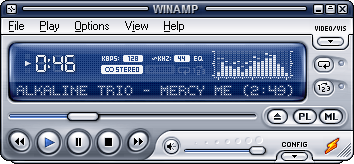
Winamp 5 with one of the optional skins
As filesharing and MP3s became more popular I started looking at other media players that offered more capabilities. I recall using Winamp for a time. It offered skins like Microsoft Media Player but they reminded me more like the components of your home stereo system. Winamp had a really neat parametric equalizer built-in, which Microsoft eventually added as well. But Winamp was cool because it wasn’t Microsoft.
I used iTunes for a time when you could store your entire library in their cloud service but again, their product wouldn’t play everything that I wanted to play.
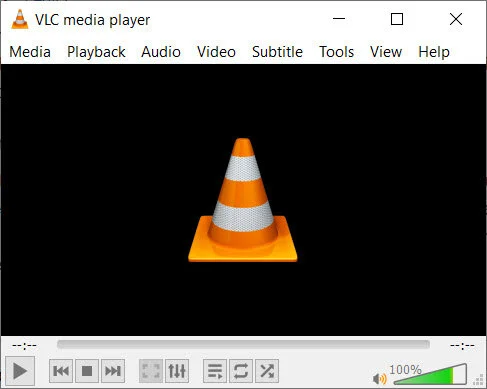
VLC media player version 3.0.16 Vetinari, currently installed on all my PCs
Eventually, I stumbled upon Video Lan Client or more commonly called VLC. VLC is what I use presently and I don’t recall when I started using it but my guess was during the Windows XP era. VLC is open-source, which means that the software is written by people like me and you. There is no big company like Microsoft or Apple behind it. I have used it for so long because I can install it on my current PC in seconds and it plays everything (certainly everything I need it to play). I have to admit that some of the videos I have on my media PC are not official copies of movies so the formats of some of the videos I keep on my media PC are sometimes bizarre. I’ve even discovered strange encoding that wouldn’t play on Windows Media Play will play just fine in VLC.
When Windows 8 came there was Groove Music and I thought I would try it out. It was really just a front end for the music streaming service from Microsoft, which you know will ultimately be a failure. Sure enough, Groove Music Pass has been discontinued. You could still use the player in Windows 10 but I think most people have walked away. It’s one of the first things I uninstall on my Windows 10 installation.
For me, it really just comes down to the fact that for over a decade I have used VLC because it just works. It’s my default music player, it’s my default video player, it’s fast and installs super easy and just works. Also because it’s open-source I never have to worry about it installing advertising or tracking. Here is a cool interview with the founder that should give you an idea about how trustworthy he and his company are (I’m not even sure if they count as a company).
There are a ton of features in VLC I don’t take advantage of but if you wish to stop using other media players or wished you had a nice simple media player that plays videos and audio. VLC would be my recommendation. It’s one of the first items I install on new PCs. Here is the link to download the latest version. https://www.videolan.org/

Connect To Other Windows PCs Using a Free App from Microsoft
In this video, I show you how I connect to other Windows PCs on my home network using a free app from Microsoft called Remote Desktop.
In this video, I show you how I connect to other Windows PCs on my home network using a free app from Microsoft called Remote Desktop.