

Multiple Flip Cards with Forced Navigation in your Adobe Captivate eLearning
In this video, I show you how you can combine a custom flip card with forced navigation in your Adobe Captivate eLearning project.
In this video, I show you how you can combine a custom flip card with forced navigation in your Adobe Captivate eLearning project.

Start Treating Yourself Right With These Self-Care Tips
We all experience doubt, busy days, and stressful situations. When our friends turn to us for comfort, or our family members need propping up, we don’t hesitate to lend a shoulder, lend a hand, or lend an ear — sometimes all three!
We all experience doubt, busy days, and stressful situations. When our friends turn to us for comfort, or our family members need propping up, we don’t hesitate to lend a shoulder, lend a hand, or lend an ear — sometimes all three! You would never tell a struggling loved one that they need to forget how they feel and work harder, or that they just needed to push through a stressful situation despite their feelings, or any of the other harsh things you tell yourself on a daily basis. So, why do you expect all these things of yourself?
Self-care isn’t just about pampering yourself and having “me-time.” It’s about radical self-love. It’s about telling yourself that you are worth it and reaping the benefits that come from that kind of mental outlook. CaptivateTeacher.com presents some advice you need to consider.
Care for your body
The first step to practicing radical self-love through self-care is to treat your body like the temple that it is. Wash your face, and clean your skin. Show your body you love it by giving it healthy nutrients and improving your posture. By balancing the foods you eat and making sure you’re getting enough of the good stuff — even if it’s a quick, on-the-go nutrition bar or protein shake — you can make your way to being more balanced in other parts of your life, as well.
Exercise is also a great way to relax and get your physical self in the right place. Yoga, in particular, has been proven to have mental health benefits as well as physical. As long as you work on doing movement that is meaningful to you, that will have a positive impact. And a yoga practice doesn’t have to be long — even just 20 minutes every morning can be beneficial.
Care for your mind
“Talk to yourself like you would to someone you love,” educator and self-love enthusiast Brené Brown once said. Treating yourself the way you treat your loved ones is a learned art, but it has a real impact on your mind. After all, you should love yourself. You are who carries out all the day-to-day activities of keeping yourself afloat.
Your mental health is just as important as physical. Getting a good night’s sleep, practicing mindfulness, and learning how to put your needs first — in other words, learning how to say “no” — are all integral parts of mental health care.
Care for your environment
Self-care is also exhibited in the way you treat your home. Keeping a clean home helps you keep a clean mind, and has been shown to decrease anxiety — there is some truth to the adage that clutter in the environment often leads to clutter in the brain. Maintaining a stress-free environment is key, and there are several ways you can ensure that your surroundings aren’t contributing to your anxiety. For one, you should spend some time decluttering. One room at a time will do it, even — small steps lead to big ones. You can also infuse your home with positivity by bringing in greenery like succulents, which have been shown to decrease stress.
One step at a time
When you get yourself right, you have more time and energy to devote to others. So when it comes to making sure you get the attention you deserve, you should consider the impact it’s going to have not only on your own psyche, but on your ability to support the people around you. Self-care can also lead to better productivity, among other important benefits.

Adjust All Your Audio Levels At Once in Adobe Captivate
In this video, I show you how you can adjust the audio levels of all your slide audio in a single Adobe Captivate project at once.
In this video, I show you how you can adjust the audio levels of all your slide audio in a single Adobe Captivate project at once.

Secrets Revealed About the New Captivate
Learn about the next release of Adobe Captivate for 2022
A world of information is presented to you when a company like Adobe does a sneak peek. I think they assume that everyone is going to merely follow the presenter as they show you one thing or another. What I like to do is look at the individual screens regardless of what the presenter is showing us and see what else I can learn about the future of this software. Here is what I've discovered so far. You can watch the video and/or read the article below:
Remember these are early days for what Adobe is calling Project Charm. It’s safe to say that most of what I'm showing here will end up in what will probably be called Adobe Captivate 2022, but there are no guarantee. Also, I wish to emphasize that I’m not revealing anything that cannot be found in their publicly available video found here on their YouTube channel. https://youtu.be/y4Wnnc7e9kY
Spectrum
At around 0:47 seconds into the video, Pooja Jaisingh, Lead eLearning Evangelist, Adobe Digital Learning Solutions, mentions Spectrum when referring to Captivate being completely redesigned. Spectrum is Adobe’s modern design system that I expect will eventually influence all their products moving forward. Pooja mentions that Spectrum is built to be inclusive. When you research Spectrum you learn that accessibility standards are something you can expect from products that are designed with this design system. While Captivate has been capable of publishing out eLearning that meets accessibility standards the product itself doesn’t meet those standards. I hope this means that future versions of Captivate will be accessible themselves. Meaning that accessible eLearning can be developed by the very people for who it was designed for. If this is true that’s very exciting news. You can learn more about what goes into Spectrum by visiting Adobe’s website here:
https://spectrum.adobe.com
The Welcome Screen
The welcome screen has been streamlined so that new projects are easy to select and create. An emphasis on project templates now exists that didn’t before. I think this will be a welcome addition for new Captivate users who might not know how to get started. in the upper right corner, there appears to be dynamic content that Adobe will push out to you to share the latest upcoming webinar or certification.
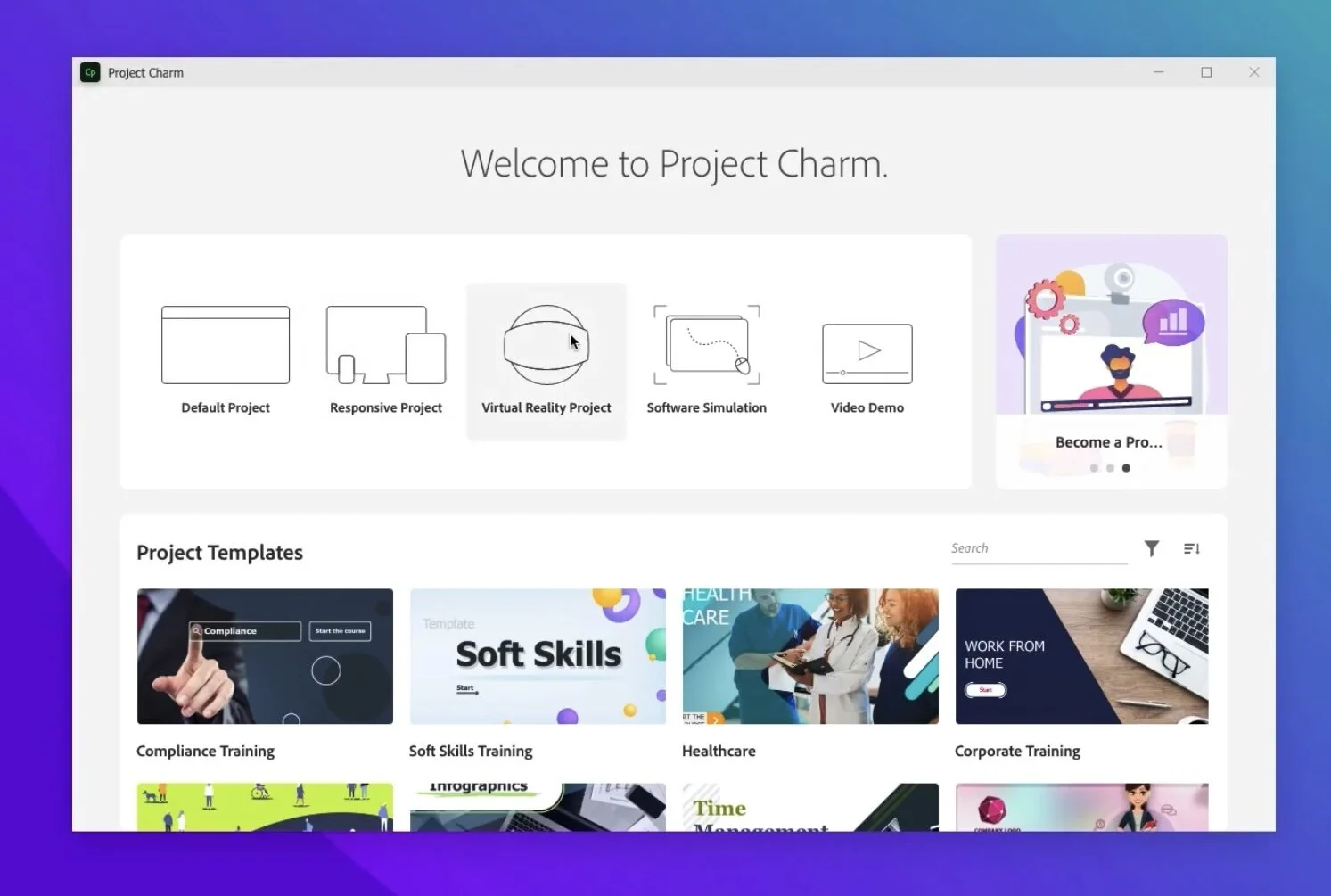
Welcome screen
User Interface
at around two minutes twenty seconds, we see the Spectrum interface in action. Pooja mentions a left-to-right workflow philosophy and I think that’s a great way to think about design. You will start on the left and select the type of object you wish to add, you move to the center where your canvas exists and place the object. finally, you will look to the properties inspector on the right where you will customize the parameters of that object you just added.
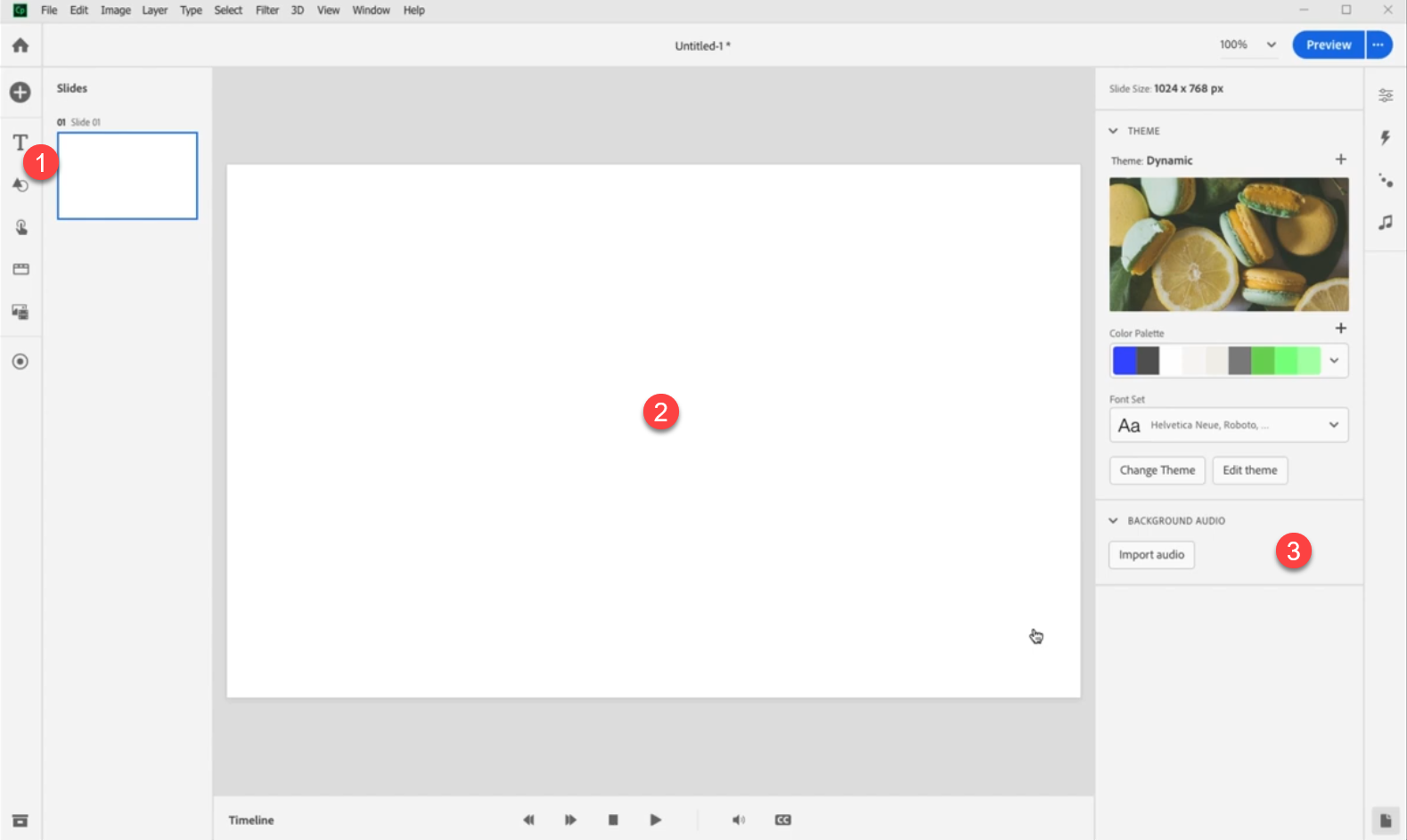
User interface
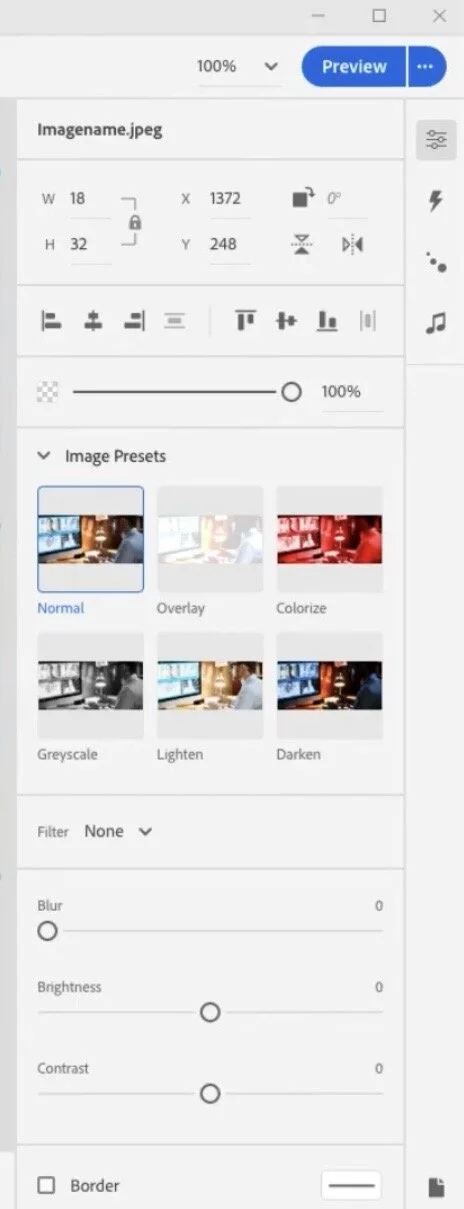
Options for images
It looks like there are some interesting choices for modifying images in this next version of Captivate. I like the idea of editing images at the touch of an option rather than round-tripping to an external app or opening a separate edit window. Of course, the hope is that this provides enough options. I'm very interested in the Blur option you can see in this screen capture.
Button options
Up to and including Adobe Captivate 2019, buttons have meant different things. Mostly what I call a button is a shape or image used as a button. I haven't used the classic Captivate button in years. Perhaps this is something new and better suited to HTML5.

Button options
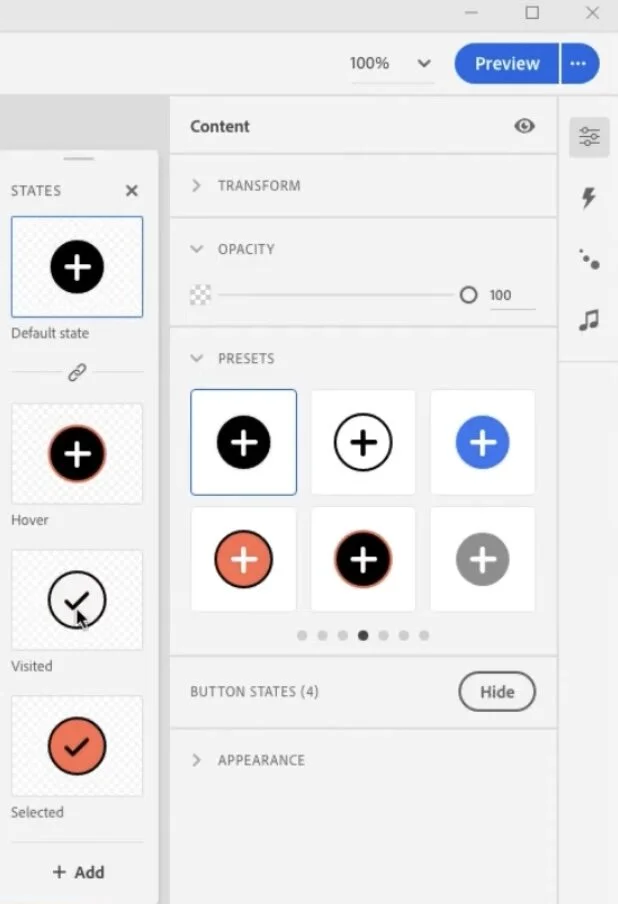
Button states
One thing I would like to see is more in-built states that are saved as part of the object style. This screenshot teases the possibility that there will be visited and selected states. I hope that I can save these as part of the object style so they can be applied to other similar buttons. Also selected would be a wonderful addition to the functionality of buttons as well. If I didn't have to write advanced actions for selected states that would save me a bunch of time.
Triggering actions (advanced actions?)
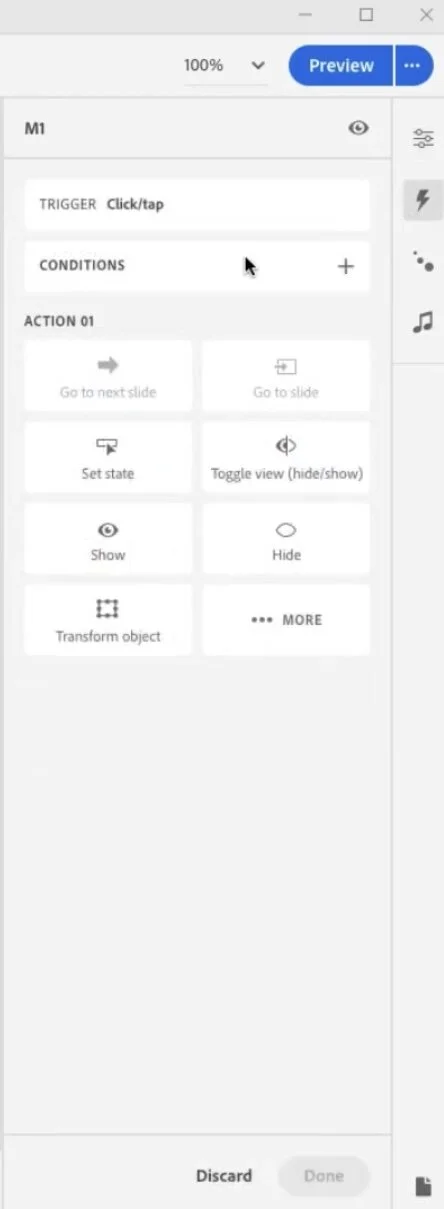
Here you can see you can trigger actions for clicking on certain objects. Pooja demonstrated the ease of creating a click to reveal interaction that required far fewer steps than a similar interaction today.
Copying and pasting interactions
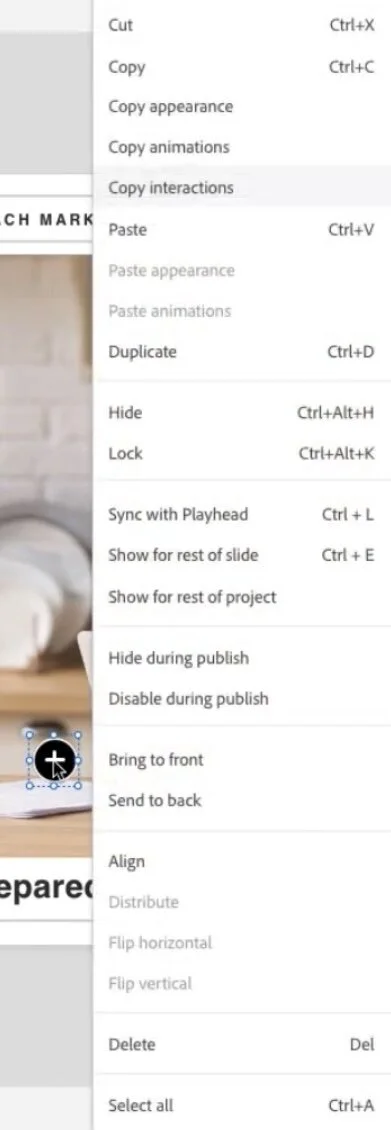
I love that you can copy and paste interactions once you have built one example. Here Pooja created one click on her click to reveal and merely copied and pasted the action make a small revision to the action to Shaw a different state. What a time saver.
All selected objects clicked
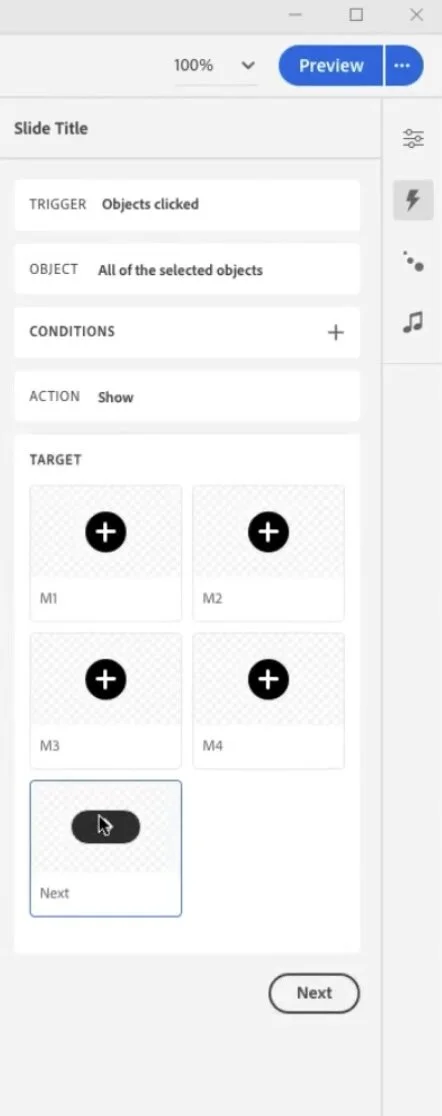
And then with a simple work flow you can select a final action to run when all the objects have been clicked. This offers a huge time saver for creating forced navigation interactions. A great replacement for the time consuming advanced actions. I'm curious if I can do everything I can presently do with advanced actions but I definately like what I'm seeing.
The new widgets
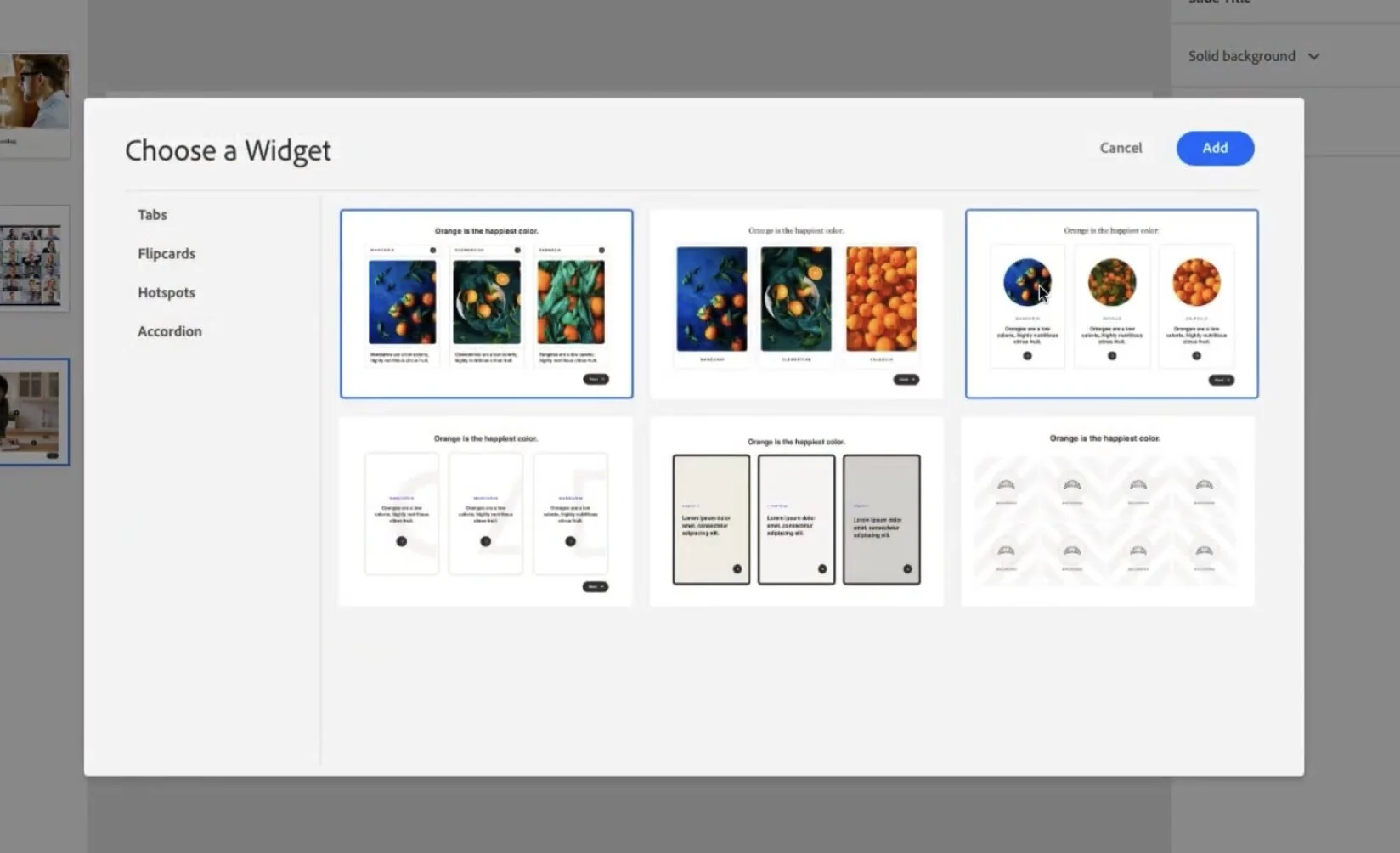
When I think of widgets I think of the old SWF based widgets from past versions of Captivate, or perhaps the learning interactions that only offered limited abilities to customize. In this new release widget looks like it means something else. These widgets have a modern look that I wouldn't hesitate to use in my eLearning projects.
Question slides
Workflow is something we don't think about too often but every extra click allows you down. Over the course of using software for years that can really add up to wasted time. Adding question slides has always been a multiple step process. Nice to see that we can just add a matching slide with two simple clicks.
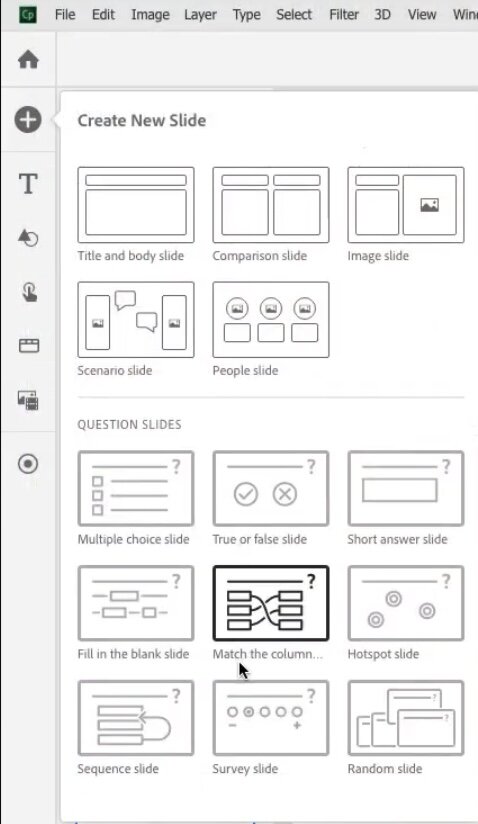
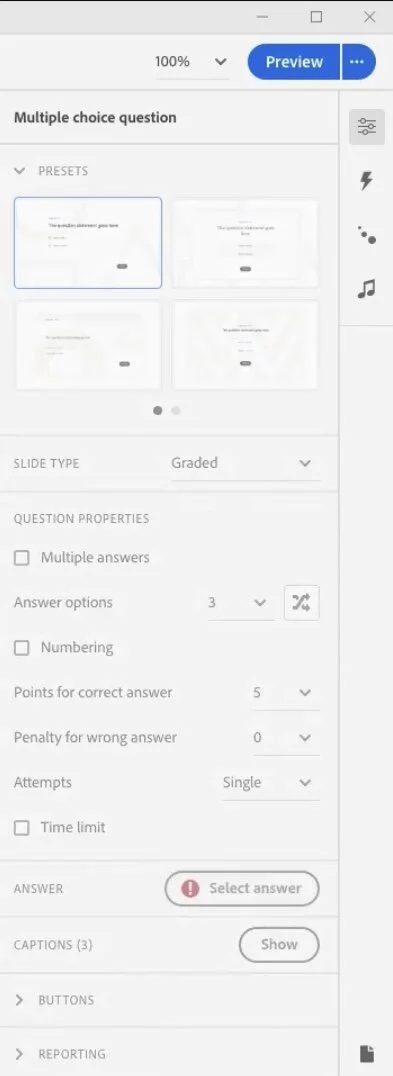
Multiple question slides layouts
We've always been able to design extra matter slides to advocate different question slides layouts. I'm wondering if this is now built in. You can see the quiz panel has this selection option for quickly changing the look and feel of your question slides. Looking forward to getting my hands on this to try it out. This quiz results slide has something similar as well. Like I said can't wait to see it for real.
I love the sneak peeks we get from Adobe. Don't forget that some or all of what's in this sneak peek may not be in the final release of Adobe Captivate. I'd love to hear what features you would like to see in the next release. Put your thoughts below. Also if you saw something I missed let me know. I will cover responsive design in a seperate and future post.
By the way here is the link to view the sneak peek for yourself.
Additionally, if you would like to sign up for the beta for this project you can provide your personal information here: https://forms.office.com/r/d3bjdwhqbG

Custom Toggle Buttons for Adobe Captivate
In this video, I show you how I make three different custom toggle buttons for Adobe Captivate that you can use to change the value of your own user variables and display information about the selection back to your learners.
In this video, I show you how I make three different custom toggle buttons for Adobe Captivate that you can use to change the value of your own user variables and display information about the selection back to your learners. This is an excellent tutorial if you want to learn more about writing advanced actions that use user variables.

Use Drag and Drop Instead of a Click to Reveal in Your Adobe Captivate eLearning
In this video, I show you how to use drag and drop to build an interaction that you can use instead of a click to reveal in your Adobe Captivate elearning project.
In this video, I show you how to use drag and drop to build an interaction that you can use instead of a click to reveal in your Adobe Captivate elearning project. Also, this interaction uses forced navigation to prevent learners from skipping important content. Finally, this interaction uses a shared action to save you from writing multiple advanced actions. Free download members of my YouTube channel or higher can download this project file for their own use.

Enterprise LMS with Adobe Captivate Prime
When Damien asked me if I wanted to check out his new book called Enterprise LMS with Adobe Captivate Prime: Design and develop world-class learning experiences for your employees, partners, and customers, I was happy to give it a read. Presently as an influencer, Adobe provides me with a demo account for Adobe Captivate Prime, but the one thing that has been lacking is an excellent book to guide me through learning this cloud-based LMS. You see, Damien's book is the first and, at the time of this writing, the only book on Adobe Captivate Prime.
I remember working for an organization that decided to purchase a new LMS. I was an instructional designer who specialized in eLearning. Therefore, I had a hand in some of our organization's decisions. The LMS vendor had countless meetings with the critical individuals on our team, and it felt like a highly unproductive time. I don't recall exactly how long this took, but it felt like the better part of the year. They installed this software on our company servers, and we even had one of their IT people working out of our office for months. Our company purchased this LMS outright for more than a million dollars, and I know there were monthly service fees as well. I remember at the time thinking that was outrageously expensive.
Fast forward about half a dozen years to an Adobe eLearning conference I was attending. Imagine my surprise when they announced an LMS that only cost $4 per month per learner. Of course, there is a minimum threshold of learners required, but still, I could afford that if I wanted to set up my own LMS. It was at this same conference where I met Damien Bruyndockx. I was flattered that the author of the Mastering Adobe Captivate series of books was aware of my YouTube channel. I was undoubtedly a fan of his work. We shared a taxi cab from the conference hotel to the airport and had some time to get to know one another and become friends.
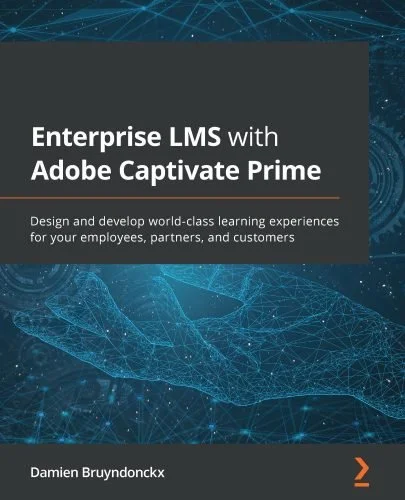
Image of book cover
I'm a big believer that my eLearning supports a larger universe that contributes to all the learning an individual needs. This also includes classroom training, on-the-job learning, and informal learning from their peers. This was one topic I was very interested in, but I had some doubts that a highly technical book would teach me how to set up social learning in my LMS. Again, I've tried to learn about the tool using my account where I'm the sole user. It's hard to learn about social learning when you're by yourself. Damien's book has an entire chapter covering how to enable and manage social learning. Captivate Prime has discussion boards that can be activated. The book not only discusses how to get it up and running but gives you the background as to why you would want to add this to your LMS. Damien's book is excellent that way and this is only one such example. The book not only provides the know-how but the why you do something as well.
Whether you have already purchased Adobe Captivate Prime or are just getting started with the trial account, Enterprise LMS with Adobe Captivate Prime is a great resource. You might be the LMS administrator of an organization about to embark on a transition from your old LMS to this one, or perhaps you are like me, a freelancer who knows he will have to have some knowledgeable discussions about LMS and specifically Captivate Prime with your clients. Whatever your role is I literally cannot recommend any other book about Captivate Prime. This is the definitive work. Purchase Enterprise LMS with Adobe Captivate Prime from Amazon using the link below:
When Damien asked me if I wanted to check out his new book called Enterprise LMS with Adobe Captivate Prime: Design and develop world-class learning experiences for your employees, partners, and customers, I was happy to give it a read. Presently as an influencer, Adobe provides me with a demo account for Adobe Captivate Prime, but the one thing that has been lacking is an excellent book to guide me through learning this cloud-based LMS. You see, Damien's book is the first and, at the time of this writing, the only book on Adobe Captivate Prime. Up until now, I have had to figure things out blindly. It has taken me years to learn some aspects of Captivate Prime. Now I have a resource that I can use as a reference.
When you log into Prime, you can switch between any of the assigned roles. So, for example, you would likely have administrator, author, instructor, manager, and learner access to the LMS as an instructional designer. I find this invaluable because not only do I need to perform the job of the author, but I also have to perform all those other roles. Enterprise LMS with Adobe Captivate Prime has sections for all these roles and is a perfect resource for an organization new to Captivate Prime to have handy on the desks of all people in those critical roles.
Of course, we learn by doing, and Damien has thought of this. He has included practical exercises where you can practice building learning solutions with your materials or practice with the example files included with the book. Enterprise LMS with Adobe Captivate Prime is available in print and as an eBook in all the usual formats such as ePub, PDF, Kindle, etc.

Allow Your Learners to Download Files from Your Captivate eLearning Project
In this video, I show you how to allow your learners to download files such as PDF, or ZIP files from your published Adobe Captivate eLearning project.
In this video, I show you how to allow your learners to download files such as PDF, or ZIP files from your published Adobe Captivate eLearning project.

Get Back Your Full Context Menus in Windows 11
Here is how you can get back your full context menus in Windows 11, similar to what you had in Windows 10. Thanks to tomshardware.com for providing the steps in this video.
Here is how you can get back your full context menus in Windows 11, similar to what you had in Windows 10. Thanks to tomshardware.com for providing the steps in this video. Key steps:
Navigate to HKEY_CURRENT_USER\SOFTWARE\CLASSES\CLSID\
Create a new registry key called {86ca1aa0-34aa-4e8b-a509-50c905bae2a2}
Create a new key called InprocServer32
Open the (Default) key in InprocServer32 and set its value to blank
Close registry editor and reboot
Save Microsoft Office Web Apps to Your Start Menu or Task Bar
In this video, I show you how you can save your Microsoft Office web apps to your Windows computer as progressive web apps that look and act pretty much like the full version of the software.
In this video, I show you how you can save your Microsoft Office web apps to your Windows computer as progressive web apps that look and act pretty much like the full version of the software.