
Tiny App Tuesday #5 - VLC
This edition of Tiny App Tuesdays I'm sharing VLC…

One of the more unusual skins for Windows Media Player
I guess Windows 95 was the first version of Windows where I actually got onto the internet and downloaded software from various sources. By the early 2000s, I was serious about multimedia on my PC. Of course, Windows users had Windows Media Player. When it first showed up on my Windows PC it was fine but almost immediately you would discover that it wouldn’t play certain formats of multimedia. Microsoft tried to compete with some of the new media players by adding cool features like being able to skin the player, however the problem was that Microsoft was like your Dad. They just were never going to be cool.
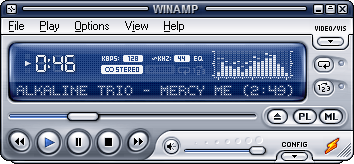
Winamp 5 with one of the optional skins
As filesharing and MP3s became more popular I started looking at other media players that offered more capabilities. I recall using Winamp for a time. It offered skins like Microsoft Media Player but they reminded me more like the components of your home stereo system. Winamp had a really neat parametric equalizer built-in, which Microsoft eventually added as well. But Winamp was cool because it wasn’t Microsoft.
I used iTunes for a time when you could store your entire library in their cloud service but again, their product wouldn’t play everything that I wanted to play.
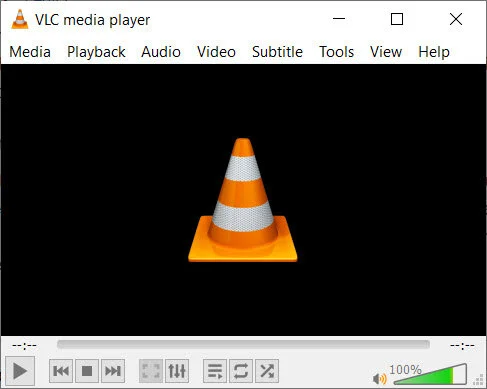
VLC media player version 3.0.16 Vetinari, currently installed on all my PCs
Eventually, I stumbled upon Video Lan Client or more commonly called VLC. VLC is what I use presently and I don’t recall when I started using it but my guess was during the Windows XP era. VLC is open-source, which means that the software is written by people like me and you. There is no big company like Microsoft or Apple behind it. I have used it for so long because I can install it on my current PC in seconds and it plays everything (certainly everything I need it to play). I have to admit that some of the videos I have on my media PC are not official copies of movies so the formats of some of the videos I keep on my media PC are sometimes bizarre. I’ve even discovered strange encoding that wouldn’t play on Windows Media Play will play just fine in VLC.
When Windows 8 came there was Groove Music and I thought I would try it out. It was really just a front end for the music streaming service from Microsoft, which you know will ultimately be a failure. Sure enough, Groove Music Pass has been discontinued. You could still use the player in Windows 10 but I think most people have walked away. It’s one of the first things I uninstall on my Windows 10 installation.
For me, it really just comes down to the fact that for over a decade I have used VLC because it just works. It’s my default music player, it’s my default video player, it’s fast and installs super easy and just works. Also because it’s open-source I never have to worry about it installing advertising or tracking. Here is a cool interview with the founder that should give you an idea about how trustworthy he and his company are (I’m not even sure if they count as a company).
There are a ton of features in VLC I don’t take advantage of but if you wish to stop using other media players or wished you had a nice simple media player that plays videos and audio. VLC would be my recommendation. It’s one of the first items I install on new PCs. Here is the link to download the latest version. https://www.videolan.org/
Tiny App Tuesday #4 - Oracle VM VirtualBox
As an eLearning designer, developer I sometimes need to install software to create software demos, or assessment through software simulation. If you’re like me your main PC or Mac is super important to your business. I’m not crazy about installing software on my computer without really knowing what impact it will have on my other software that is essential to my business.
The solution to this problem is to install virtual machines on your computer. A virtual machine is a software simulation of a computer system. I first got interested in virtual machines when I had a need to install Macromedia Captivate 1.0, which just doesn’t install on a modern OS like Windows 10. I needed to be able to install Captivate 1 on an operating system from the early 2000s. I selected Windows XP as I had on old unused license for XP but there was no way I was going to wipe my hard drive on my 2019 top of line laptop to install Windows XP. It’s very likely it wouldn’t work anyway. VMware is a company that produces software to emulate a full PC but it’s a professional application that requires a paid license to maintain. My needs were minimal so I looked for a more affordable solution.
I found that Oracle produced VirtualBox, an open sourced virtual machine application that anyone can download, install and configure a virtual PC to run any operating system and subsequent software you need. The best part is that other than taking up some space on your computer storage, these virtual machines have no impact on your main computer and you can delete the virtual machines when you are through with them.
Another benefit of VirtualBox is that you can install it not only on a Windows machine, but you can install it on MacOS and Linux to emulate a variety of OS and software that may not normally be available to your computer in its current configuration.
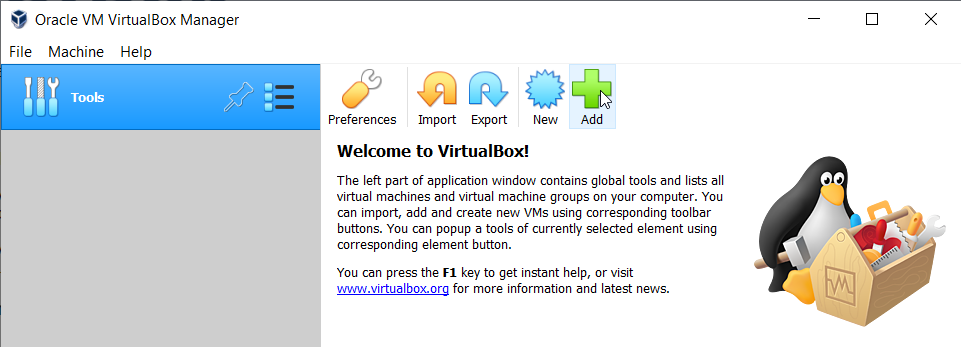
Once you have installed VirtualBox you can merely click on the New icon to begin the process of creating your virtual machine.
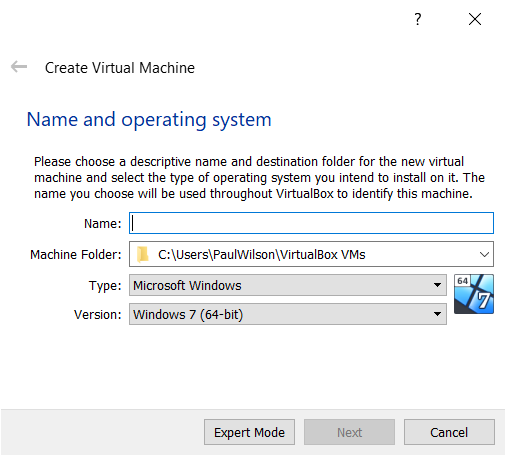
The first thing you need to do is give your virtual machine a name and identify what Operating System you intend to install. You can select from Windows, Linux, Solaris, BSD, OS/2, Mac OS X, and possibly others.
You will then need to configure how much of your system RAM you wish to let your virtual machine “borrow.“ The default for a Windows 7 machine is 2GB but you can increase this to what you need. Obviously using all your actual system memory might impact the performance of your machine while running the virtual machine so keep that in mind.
Next, you will select or create a virtual hard disk. VirtualBox will recommend a size based on the operating system but you can increase this if you anticipate more space needed for additional software. For example, a Windows 7 virtual machine recommends a 32GB drive but I usually increase this to 50GB. There are several hard disk file types you can select. I always select the default VDI format which is a VirtualBox Disk Image format but you can select one of the two other formats if you have a need.
If you select the VirtualBox Disk Image you can also select to make the size dynamic. In other words, the virtual drive will grow as it is used. I almost always select Dynamically allocated but if you don’t want the virtual disk to take more than what you previously allocated you can select a fixed size.
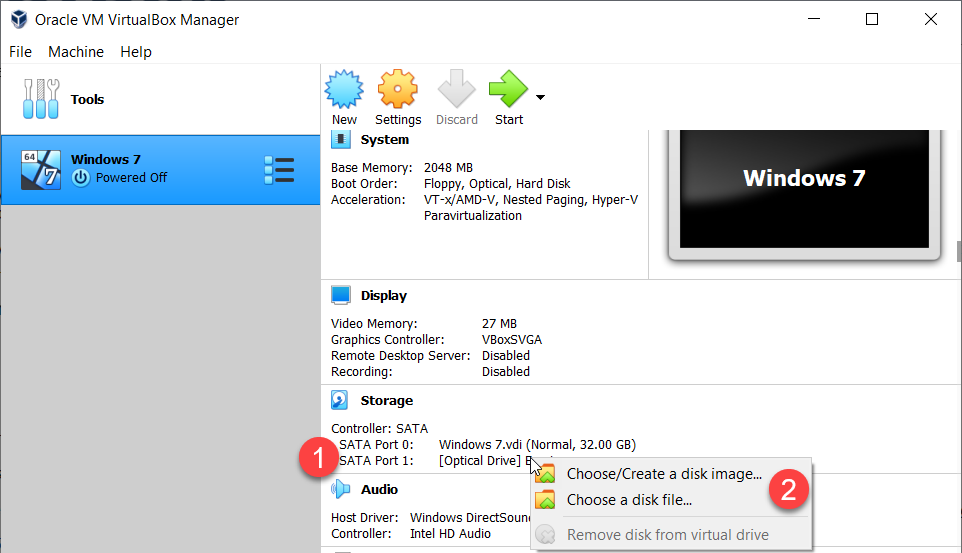
Once you’ve selected all the parameters of your virtual machine it’s like having a blank computer with no operating system. You will need to provide an installation disk to virtually place in the virtual machine’s optical drive to install. Scroll down to the Storage section of your new virtual machine and click on the Optical Drive to either choose a disk image or disk file. You can select ISO files like the ones you can download from Microsoft, or other formats such as DMG, CUE, VISO, RAW, and more. For a Windows OS you will likely have an ISO.
While writing this article I downloaded the original file to install Windows 8.1 on my older laptop (just for testing purposes). I then clicked on Start from the VirtualBox Manager interface and within 20 minutes or so, I was able to have a virtual version of Windows 8.1 running on my VirtualBox.
Tiny App Tuesday #3 - PowerToys
A small team over at Microsoft has resurrected the idea of PowerToys for Windows 10. And what’s really good news is that some of these tools are ideal for people in the eLearning development industry.
Do you remember PowerToys from back in the Windows 95 days? Most people who remember it for a functionality called TweakUI where you can customize how Windows 95 looked and functioned. Unfortunately, TweakUI is long gone but a small team over at Microsoft has resurrected the idea of PowerToys for Windows 10. And what’s really good news is that some of these tools are ideal for people in the eLearning development industry.
Color Picker
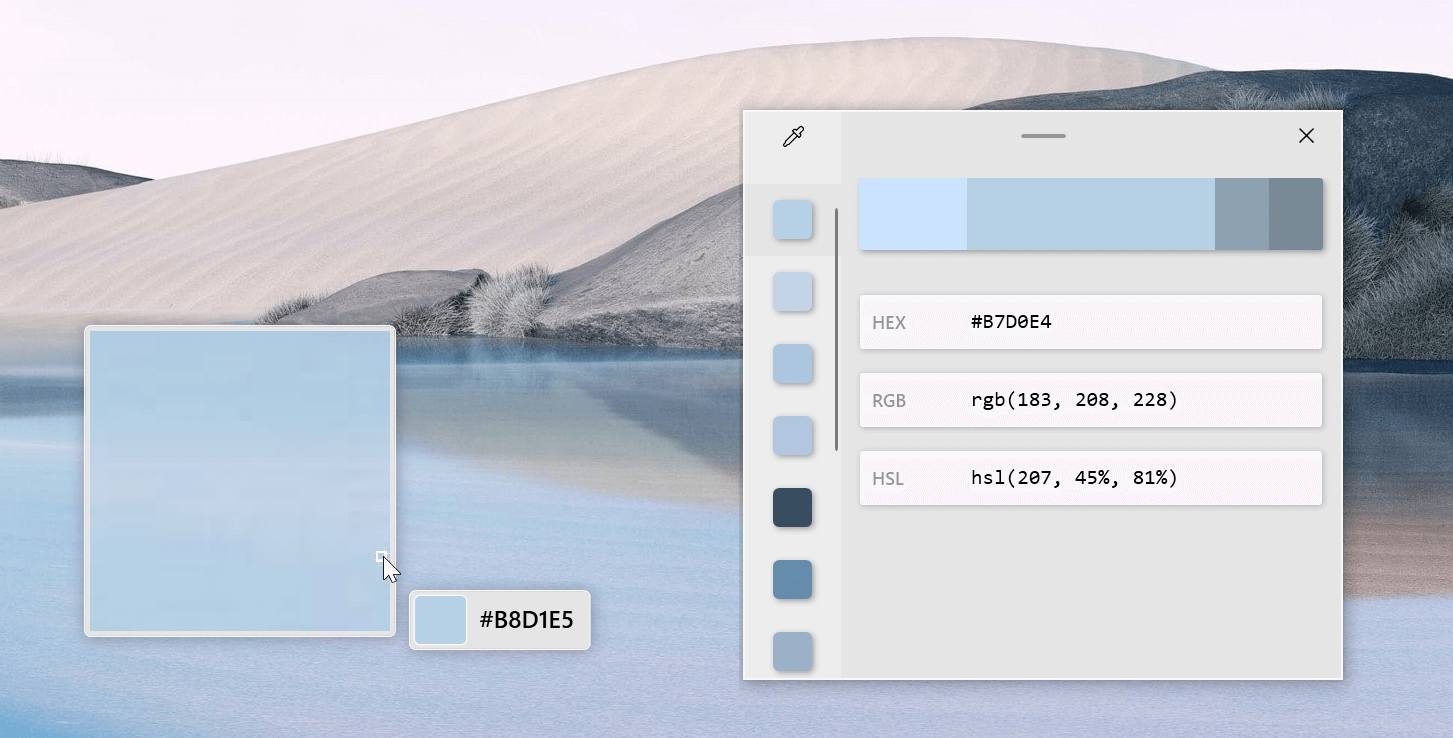
Once installed you can take advantage of the colour picker tool. Using a simple keyboard shortcut you can activate the colour picker which allows you to use your mouse as an eyedropper to select and copy the exact HEX, RGB or HSL colour settings for whatever you click on. This saves me a bunch of steps when I need to capture a colour code from an image.
File Explorer
With Adobe Captivate version 2019 we now have the ability to import SVG images. Unfortunately, Windows doesn’t show you a thumbnail preview of SVG files before you import them. With improvements to File Explorer in PowerToys, you can now have a Preview Pane of SVGs. This is really helpful when you have a folder filled with SVGs and you’re not sure which is the one you are looking for.
Image Resizer
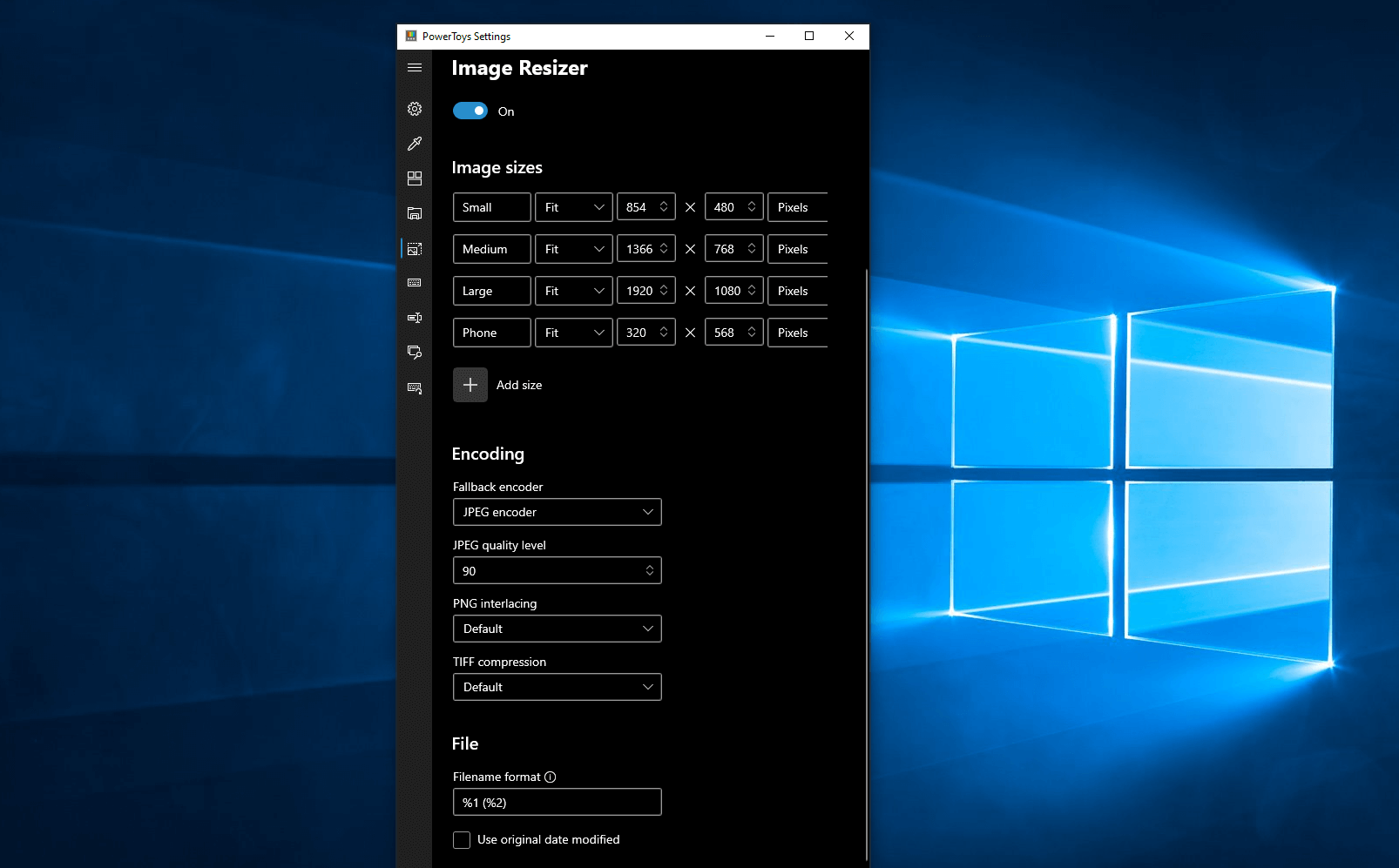
Probably my favourite feature as an eLearning designer is Image Resizer. If I’m building a course that will contain dozens or even hundreds of images I no longer have to load them up one by one in Photoshop to resize them before importing them into Captivate. Select all the files you wish to resize and right-click on them to select Image Resizer. You can make whatever adjustments you need and make the changes en masse.
Download PowerToys if you would like to add these and other functions to your Windows interface.

Tiny App Tuesday #2 - PureText
In this week’s Tiny App Tuesday, I want to share a tiny free app that I’ve been using for a number of years now. This app is called PureText.
In this week’s Tiny App Tuesday, I want to share a tiny free app that I’ve been using for a number of years now. This app is called PureText. It’s purpose is to streamline the workflow of removing text formatting when you are copying text from a storyboard or presentation file and pasting it into your eLearning authoriing tool. I don’t know about you but I’ve always found that hidden text formating gets copied over and messes with how plain text should look when pasted in Adobe Captivate. PureText can be setup with a unique paste keyboard shortcut so I don’t need to slow down when copying and pasting. I personally use the Windows key + V but you can use anything you wish. PureText is available for free from the authors website but you can also find it in the Windows Store.
https://www.microsoft.com/en-us/p/puretext/9pkjv6319qtl?activetab=pivot:overviewtab

Tiny App Tuesday #1 - Bing Wallpaper
This is the first of a series I want to call Tiny Software Tuesday, where I showcase a small, usually free application that you can install on your computer that benefits those in the eLearning space.
This is the first of a series I want to call Tiny Software Tuesday, where I showcase a small, usually free application that you can install on your computer that benefits those in the eLearning space.
For this first entry in the series, I’ve been thinking about the mental wellness of working from home lately. My wife and I have moved from our house of fifteen years to a much smaller condominium. When we decided to do this several years ago, we had no idea we would be cooped up together without the freedom to get coffee or go to the bookstore. We don’t regret our decision to downsize, but we’ve discovered that we need to look for ways to put a few more smiles on our faces.
The Windows desktop has always been something I ignore. I discovered a neat little application that allows me to be pleasantly surprised with a new desktop wallpaper every day. It’s called Bing Wallpaper. Of course, to be free, Microsoft hopes you also update your search engine to Bing.com, but this isn’t required.
Not only will you get a new beautiful desktop every day, but you can also browse these images and learn where they’re from.